
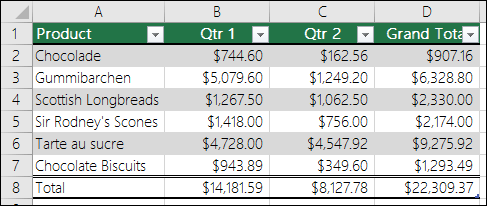
You can quickly format your worksheet data by applying a predefined table style. However, when you apply a predefined table style, Excel automatically creates an Excel table for the selected data. If you don't want to work with your data in a table but want to keep the table style formatting, you can convert the table back to a regular range.
Note
When you convert a table back to a range, you lose table properties like row shading with Banded Rows, the ability to use different formulas in a Total Row, and adding data in rows or columns directly adjacent to your data doesn't automatically expand the table or its formatting. Any structured references (references that use table names) that were used in formulas turn into regular cell references.
Create a table, then convert it back into a range
On the worksheet, select a range of cells that you want to format by applying a predefined table style.
On the Home tab, in the Styles group, select Format as Table.
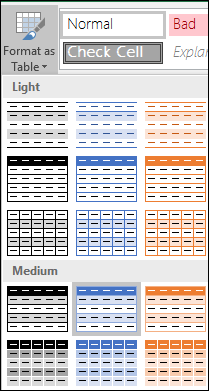
Select the table style that you want to use.
Tip
- Auto Preview - Excel automatically formats your data range or table with a preview of any style you select, but it only applies that style if you press Enter or select with the mouse to confirm it. You can scroll through the table formats with the mouse or your keyboard's arrow keys.
- You can find custom table styles under Custom after you create one or more of them. For information on how to create a custom table style, see Format an Excel table.
Select anywhere in the table.
Go to Table Design on the Ribbon. On a Mac, go to the Table tab.
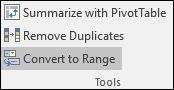
In the Tools group, select Convert to Range.
Tip
You can also right-click the table, select Table, and then select Convert to Range.
Need more help?
You can always ask an expert in the Excel Tech Community or get support in Communities.
See also
Total the data in an Excel table
Resize a table by adding or removing rows and columns
Filter data in a range or table
Using structured references with Excel tables