
When you create new cell styles in a workbook, you may want to make them available in other workbooks. You can copy the cell styles from that workbook to another workbook.
Open the workbook that contains the cell styles that you want to copy.
Open the workbook that you want to copy the styles into.
On the Home tab, in the Styles group, click the Cell Styles dropdown.
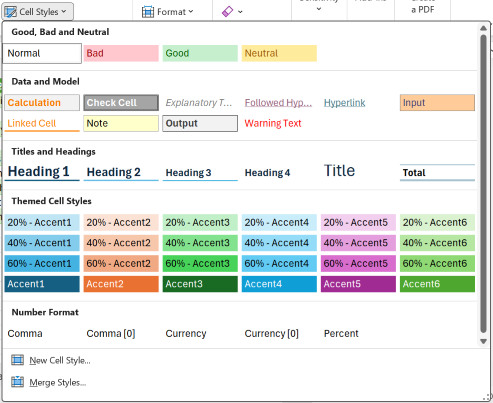
Click Merge Styles.
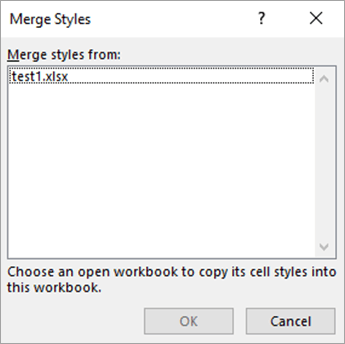
In the Merge Styles dialog box, in the Merge styles from box, click the workbook that contains the styles that you want to copy, and then click OK.
If both workbooks contain styles that have identical names, you must indicate whether you want to merge these styles by doing the following:
To replace the styles in the active workbook with the copied styles, click Yes.
To keep the styles in the active workbook as they are, click No.
Note
Excel displays this message only once, regardless of the number of pairs of identical style names.
Tip
When you move or copy a worksheet from one workbook to another workbook, all the styles that are used on that worksheet are also copied to that workbook. For more information, see Move or copy a worksheet.
Need more help?
You can always ask an expert in the Excel Tech Community or get support in Communities.