

Flash Fill automatically fills your data when it senses a pattern. To use it, see Using Flash Fill in Excel. However, if you're on a Windows device, you might need to enable this feature before using it.
- Select File > Options.
- Select Advanced in the left pane, and ensure that the Automatically Flash Fill box is checked.
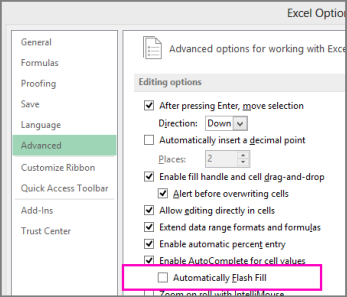
- Select OK.
- Close and restart Excel.
Start Flash Fill manually
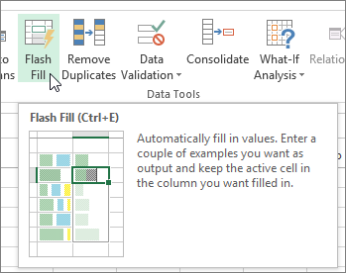
If you know that Flash Fill is enabled but it still doesn't work, you can start it manually by selecting Data > Flash Fill. You can also press Ctrl+E on the keyboard.
Need more help?
You can always ask an expert in the Excel Tech Community or get support in Communities.