
To show numbers as currency, apply either the Currency format or the Accounting format.
(You can find a comparison of the two formats in the Currency or Accounting section, later in this article.)
- Select the cells that you want to format. In the Number group on the Home tab, select the down arrow in the Number Format box.
- Choose either Currency or Accounting.
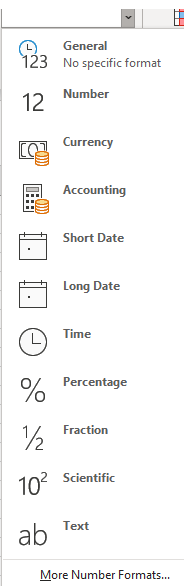
Excel for the web applies the default currency symbol and appropriate decimal places in the cells that you selected.
Currency or Accounting?
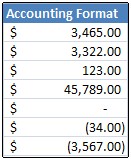
While both the Currency format and the Accounting format can be used to correctly display monetary values, some differences exist between them, as shown in the following table.
| Format | Description | Example |
|---|---|---|
| Currency | With this format:
|

|
| Accounting | With this format:
|
|
Change the default currency symbol
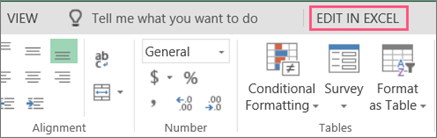
Currency formatting in Excel for the web is affected by regional settings. To learn more, see Change regional format settings in Excel for the web. If you have the Excel desktop application, you can click Open in Desktop and format numbers as currency in Excel to specify the default currency symbol that you want. After you apply the currency symbol, save your worksheet and then reopen it in Excel for the web.
For news about the latest Excel for the web updates, visit the Microsoft 365 Blog.
For the full suite of Microsoft 365 products, see plans and pricing.