

The Show Changes feature displays recent changes to your workbook. Use it to track edits to specific cells, ranges, worksheets, or the entire workbook. This article answers common questions about using Show Changes.
Tip
To explore workbook changes with Copilot in Excel, see Review the change history of your workbook with Copilot in Excel.
Important
To help ensure that all changes are saved and tracked, everyone who edits the workbook should use an Excel app that supports co-authoring. For more information, see Where can I use Show Changes?.
Where can I use Show Changes?
Show Changes is available in the Excel desktop apps and Excel for the web. Changes made in any Excel app that supports co-authoring appear in the Changes pane. Supported apps include:
- Excel for the web
- The latest version of Excel for Microsoft 365
- Excel mobile apps
Caution
Edits made in a one-time purchase or older version of Excel aren't tracked and also clear the Changes pane. For more information, see Why is the Changes pane empty when changes were made?.
Why don't I see my change in the Changes pane?
The Changes pane shows changes to cell values and formulas, including moving, sorting, inserting, or deleting cells or ranges.
These changes aren't currently shown:
- Chart, shape, and other object edits
- PivotTable operations
- Formatting changes
- Hiding cells or ranges, or filtering
The timeline might occasionally have gaps if some changes are unavailable.
To help ensure that all changes are saved and tracked, everyone who edits the workbook should use an Excel app that supports co-authoring. For more information, see Where can I use Show Changes?.
How can I view older changes?
The Changes pane shows only recent changes. To view older changes, select File > Info > Version History, and then select a version to preview. For more information, see View previous versions of Office files.
Why is the Changes pane empty when changes were made?
Certain actions might clear the Changes pane. The pane might be empty if someone:
- Edited the workbook in a one-time purchase or older version of Excel.
- Used an Excel feature that doesn't fully support co-authoring or that Show Changes doesn't track.
- Uploaded the file, saved a copy, or replaced the file.
Excel tracks new changes made in any of the supported Excel apps. To view a past version of the workbook, see How can I view older changes?.
Why are previous values missing for some changes?
The Changes pane sometimes doesn't show the previous values for certain edits. This can happen if:
- The values were changed through code, such as Visual Basic for Applications (VBA) or an Office Add-in.
- Someone edited the workbook in a version of Excel that wasn't up to date.
Reset the Changes pane
To clear the history in the Changes pane, open the workbook in Excel for the web, and then select File > Info > Reset Changes.
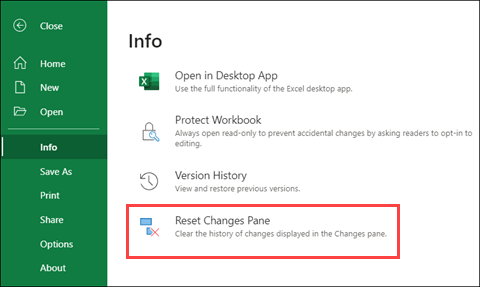
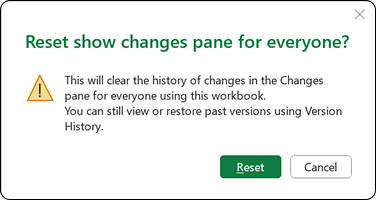
When you confirm, Excel clears the history in the Changes pane for everyone who uses the workbook. You can't undo this action, but you can still use Version History to view or restore past versions.
Note
This action doesn't clear all traces of past changes. Revision logs, version history, and other tracking might still show previous changes to the workbook.