

Suppose you have a worksheet that contains confidential information, such as employee salaries, that you don't want a coworker who stops by your desk to see. Or perhaps you multiply the values in a range of cells by the value in another cell that you don't want to be visible on the worksheet. By applying a custom number format, you can hide the values of those cells on the worksheet.
Note
Although cells with hidden values appear blank on the worksheet, their values remain displayed in the formula bar where you can work with them.
Hide cell values
Select the cell or range of cells that contains values that you want to hide. For more information, see Select cell contents in Excel.
Note
The selected cells appear blank on the worksheet, but a value appears in the formula bar when you select one of the cells.
On the Home tab, select the Number Format button
 next to Number.
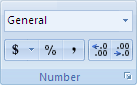
In the Category box, select Custom.
In the Type box, select the existing codes.
Type ;;; (three semicolons).
Select OK.
Tip
To cancel a selection of cells, select any cell on the worksheet.
Display hidden cell values
- Select the cell or range of cells that contains hidden values. For more information, see Select cell contents in Excel.
- On the Home tab, select the Number Format button
next to Number.
- In the Category box, select General to apply the default number format, or select the date, time, or number format that you want.
Tip
To cancel a selection of cells, select any cell on the worksheet.