

When working collaboratively on Excel cloud files, you might encounter scenarios where there is a conflict when merging changes. Understanding why this happens and what actions you can take can help you navigate the conflict in a way that is best suited to your needs.
Why am I seeing this?
During collaborative sessions, interruptions can occur that prevent your local changes from being merged with the server version of the file. This can happen for various reasons, including, but not limited to, network issues or conflicting changes made by co-authors. Recent updates in Excel have improved responsiveness during collaboration and reduced issues caused by certain background activities, such as profile card interactions, which previously could lead to unresponsiveness or merge interruptions.
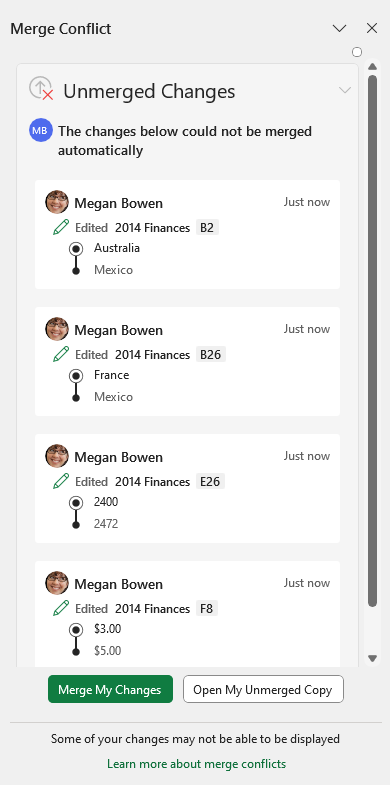
What can I do?
When you encounter a Merge Conflict, you can choose to take one of the following actions:
Merge My Changes: Merge the changes shown in the pane into your spreadsheet. All other users in the spreadsheet will also receive those changes.
Discard your changes by selecting the X button at the top right of the pane.
Open My Unmerged Copy: Open the unmerged copy that we automatically save for you whenever you encounter a merge conflict. This file will be available for 7 days and can be accessed by going to the file location:
- On Windows: %localappdata%/Microsoft/Excel/TemporaryBackupFile.
- On Mac: ~/Library/Containers/com.microsoft.Excel/Data/Library/Application Support/Microsoft/TemporaryBackupFile
- The file will be named in the format: "Date Time - BookName.xlsx" (For example: 7.26.2024 1.25 PM - MyExcelFile.xlsx). This file can help you manually compare and merge the changes if necessary or you can save a copy of the file with your unmerged changes to a more permanent location.
Modern collaboration tools
Excel now supports Copilot Chat and Agent Mode for local files, allowing users to query and modify locally stored modern Excel workbooks (.xlsx, .xlsb, .xlsm) without requiring cloud storage, which can help prevent some merge conflicts by enabling offline-first workflows.
Limitations
Be aware that not all changes might be successfully merged, and some changes may not be represented in the list but will be merged. In some cases, you may even see a blank pane entirely (see below). In this case, it is recommended that you select Open My Unmerged Copy to see what changes are missing from the cloud file, and either manually make those changes or select Merge My Changes (if it is enabled) to apply those changes to the cloud file.
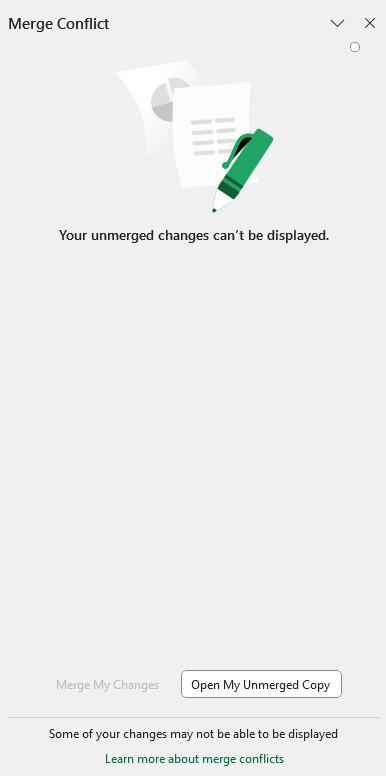
Please be aware that there may be instances where the Merge My Changes button is disabled because some of your changes cannot be automatically applied. A copy of your unmerged changes will be retained for a period of 7 days on your machine. You can access the unmerged copy file in the path indicated in section 3. above.
Merge conflict behavior with Copilot Chat and Agent Mode
Merge conflict behavior may vary when using Copilot Chat and Agent Mode with local files (available from Version 2601 and later), as these tools now enable direct editing of locally stored workbooks in addition to cloud-based files.
Additional resources
For more information on handling merge conflicts and unmerged changes, refer to the following articles: