
| Guided support in your browser can provide digital solutions for Office problems Try guided support |
|---|
The Macro Error message appears when there's an error in the macro that you were running.
The specified method can't be used on the specified object for one of the following reasons:
- An argument contains a value that's not valid. A common cause of this problem is trying to access an object that doesn't exist. For example, Workbooks(5) when only three workbooks are open.
- The method can't be used in the applied context. Specifically, some Range object methods require that the range contain data. If the range doesn't contain data, the method fails.
- An external error occurred, such as a failure to read or write from a file.
- (This issue doesn't apply to Mac) A method or property can't be used because of security settings. For example, methods and properties used to access or modify Visual Basic for Applications (VBA) code are inaccessible by default.
Note
If you have access to the macro code, open the Visual Basic Editor and check the highlighted line of code to identify the failing method or object reference.
To turn on trusted access to the VBA project object model, follow these steps:
- Enable the Developer tab on the ribbon. See Show the Developer tab for more information.
- On the Developer tab, in the Code group, select Macro Security.
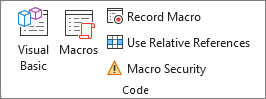
- Under Developer Macro Settings, select the Trust access to the VBA project object model check box.
For more information about VBA methods and properties, see the Excel VBA reference on Microsoft Learn.