

Have you ever migrated a workbook from another app, like Google Sheets, into Excel, only to find that your formulas don’t work, or your formatting is lost?
Don’t worry — this is a common issue! It usually happens because of a few key reasons:
- Different formulas or features: Excel and other spreadsheet apps like Google Sheets often use different formulas or features. When you move your file, these may not always translate perfectly.
- Feature differences: Some features available in other apps might not be supported in Excel.
- Unsupported or excessive formatting: Sometimes, formatting that works in one app isn’t fully supported in Excel.
To make this transition as smooth as possible, we recommend using Excel's compatibility process when you export your workbook from a third-party app and save it as an Excel file. This helps preserve your data and ensure that everything works seamlessly in Excel.
How to make a workbook compatible with Excel
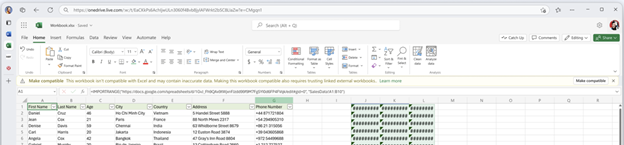
Identify incompatibility when opening files
- When you open a workbook, Excel identifies content that is incompatible.
- Problems like corrupted content, excessive file size, and performance issues are found.
- Select Next to resolve these incompatibilities.

Complete the automated compatibility
After selecting Next, Excel will automatically identify and address incompatibilities and inconsistencies.
There may be some issues that require your manual attention once the automated process is complete. You’ll see these issues in the task pane once you select Continue.

If you skip this process, Excel will still identify incompatibilities and suggest addressing them throughout your session.
Manually address any remaining issues:
After the automated process is complete, the right-side pane will give an overview of the incompatibilities that were addressed and show details of open issues.

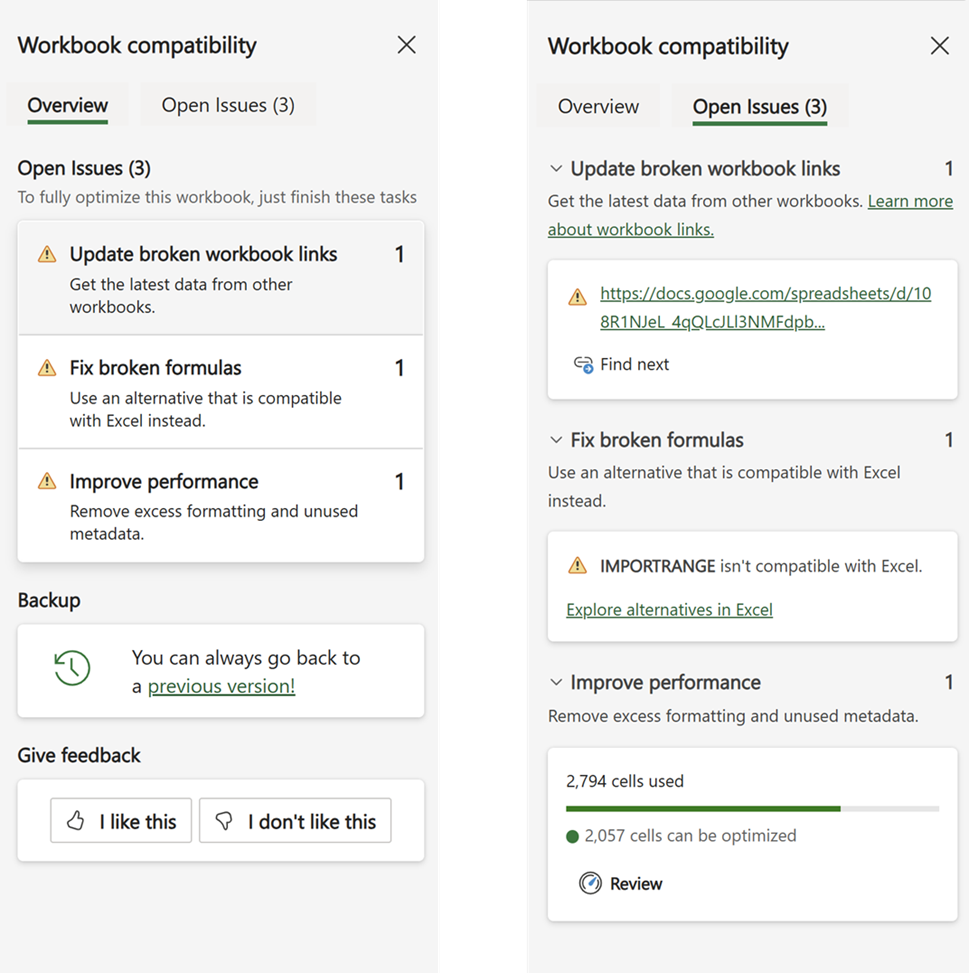
The overview tab shows the incompatibilities that have already been identified and addressed, and suggestions for open issues that need manual attention.
The open issues tab suggests the best approach for you to address the remaining incompatibilities.
Excel compatibility helps to ensure a smoother transition from third-party spreadsheet to Excel and maintain the integrity of your data.
FAQ
What will happen if you skip the file compatibility process?
- The app will recommend the process whenever you open it. If you skip this step, it will remind you the next time you open the file. However, if you keep skipping, the issues will stay in the file and might affect its performance. To keep your file running smoothly, it's best to go ahead with compatibility
Is file compatibility available on all platforms?
- File compatibility is currently available on the web.