

It's important to understand how relative cell references might change when you move or copy a formula.
- Moving a formula: When you move a formula, the cell references within the formula stay the same, no matter what type of cell reference you use.
- Copying a formula: When you copy a formula, relative cell references change.
Move a formula
Select the cell that contains the formula you want to move.
In the Clipboard group of the Home tab, select Cut.
You can also move formulas by dragging the border of the selected cell to the upper-left cell of the paste area. This action replaces any existing data.Select one of the following options:
- To paste the formula and any formatting: In the Clipboard group of the Home tab, select Paste.
- To paste the formula only: In the Clipboard group of the Home tab, select Paste, select Paste Special, and then select Formulas.
Copy a formula
Select the cell containing the formula that you want to copy.
In the Clipboard group of the Home tab, select Copy.
Select one of the following options:
To paste the formula and any formatting, in the Clipboard group of the Home tab, select Paste.
To paste the formula only, in the Clipboard group of the Home tab, select Paste, select Paste Special, and then select Formulas.
Note
You can paste only the formula results. In the Clipboard group of the Home tab, select Paste, select Paste Special, and then select Values.
Verify that the cell references in the formula produce the result that you want. If necessary, switch the type of reference by doing the following steps:
- Select the cell that contains the formula.
- In the formula bar
 , select the reference that you want to change.
 - Press F4 to switch between the combinations.
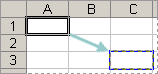
The following table summarizes how a reference type updates if you copy a formula containing the reference two cells down and two cells to the right.
| For a formula being copied: | If the reference is: | It changes to: |
|---|---|---|
|
$A$1 (absolute column and absolute row) | $A$1 |
| A$1 (relative column and absolute row) | C$1 | |
| $A1 (absolute column and relative row) | $A3 | |
| A1 (relative column and relative row) | C3 |
Note
You can also copy formulas into adjacent cells by using the fill handle
 . After verifying that the cell references in the formula produce the result that you want in step 4, select the cell that contains the copied formula, and then drag the fill handle over the range that you want to fill.


Need more help?
You can always ask an expert in the Excel Tech Community or get support in Communities.