

To reduce the amount of paper needed to print a large amount of information, you can print a sheet on just one page.
Print a sheet on one page
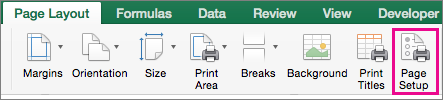
- On the Page Layout tab, select Page Setup.
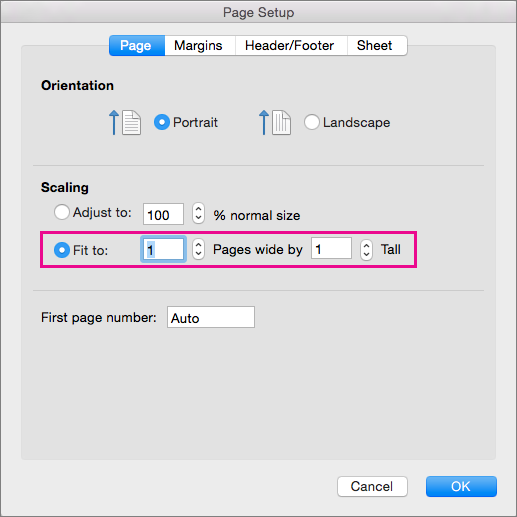
- Under Scaling, select Fit to, and type 1 in both the Pages in width by box and Tall box. Select OK.
 .
. - On the File menu, select Print.
Tips
- To print a sheet so that the columns appear on one page and the rows extend to more than one page, type 1 in the Pages wide by box, and then type 9999 in the Tall box.
- You can see how your sheet prints before you print it. On the File menu, click Print, and use the arrows to page through the worksheet.