

If your worksheet contains threaded comments or notes, you can print them.
Note
In Excel for Microsoft 365, there are two kinds of comments to choose from: threaded comments and notes. For more information, see the article Threaded comments and notes.
Print comments in earlier versions of Excel
Select the worksheet that contains the comments that you want to print, then do one of the following:
- To display an individual comment, right-click on the cell, and select Show/Hide Comments.
- To display all comments in the worksheet, go to the Review tab > Show all Comments.
- To move or resize any overlapping comments, click the border of the comment box so that its sizing handles appear.
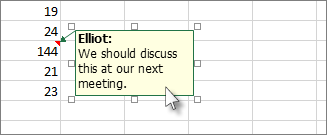
You can resize the comment box by dragging any of its sizing handles, or move it by selecting any part of its border, then drag it where you want.
On the Page Layout tab, in the Page Setup group, click the flyout on the right to launch the Page Setup dialog.

Select the Sheet tab.
In the Comments box, choose either At end of sheet or As displayed on sheet.

Click Print, or Print Preview to see a preview of the comments.
Print threaded comments and notes in Excel for Microsoft 365
Select the worksheet that contains the threaded comments and notes that you want to print.
On the Page Layout tab, in the Page Setup group, click the flyout on the right to launch the Page Setup dialog.
Select the Sheet tab.
In the Comments box, click At end of sheet.
Note
In Excel for Microsoft 365, you can't print threaded comments as they're displayed on a worksheet, but you can print notes. See the next section on printing notes in Excel for Microsoft 365.
Click Print, or Print Preview to see a preview of the comments and the notes.
Print notes only in Excel for Microsoft 365
You can print notes the way they appear on the sheet.
Select the worksheet that contains the notes that you want to print, then do one of the following:
- To display an individual note, right-click the cell and click Show/Hide Note.
- To display all notes, go to the Review tab > Notes > Show All Notes.
- To move or resize any overlapping notes, click the border of the note box so that its sizing handles appear.
You can resize the note by dragging any of its sizing handles, or move it by selecting any part of its border, then drag it where you want.
On the Page Layout tab, in the Page Setup group, click the flyout on the right to open the Page Setup dialog box.
Select the Sheet tab.
In the Comments box, click As displayed on sheet (legacy).
Note
In Excel for Microsoft 365, you can't print just notes at the end of the sheet. However, you can print both threaded comments and notes at the end of the sheet. See the previous section on printing threaded comments and notes in Excel for Microsoft 365.
Click Print, or Print Preview to see a preview of the notes.
Need more help?
You can always ask an expert in the Excel Tech Community or get support in Communities.