

Let's say that you need to sum values with more than one condition, such as the sum of product sales in a specific region. This is a good case for using the SUMIFS function in a formula.
Have a look at this example in which we have two conditions: we want the sum of Meat sales (from column C) in the South region (from column A).

Here’s a formula you can use to acomplish this:
=SUMIFS(D2:D11,A2:A11,”South”,C2:C11,”Meat”)
The result is the value 14,719.
Let's look more closely at each part of the formula.
=SUMIFS is an arithmetic formula. It calculates numbers, which in this case are in column D. The first step is to specify the location of the numbers:
=SUMIFS(D2:D11,
In other words, you want the formula to sum numbers in that column if they meet the conditions. That cell range is the first argument in this formula—the first piece of data that the function requires as input.
Next, you want to find data that meets two conditions, so you enter your first condition by specifying for the function the location of the data (A2:A11) and also what the condition is—which is “South”. Notice the commas between the separate arguments:
=SUMIFS(D2:D11,A2:A11,”South”,
Quotation marks around “South” specify that this text data.
Finally, you enter the arguments for your second condition – the range of cells (C2:C11) that contains the word “meat,” plus the word itself (surrounded by quotes) so that Excel can match it. End the formula with a closing parenthesis ) and then press Enter. The result, again, is 14,719.
=SUMIFS(D2:D11,A2:A11,”South”,C2:C11,”Meat”)
As you type the SUMIFS function in Excel, if you don’t remember the arguments, help is ready at hand. After you type =SUMIFS(, Formula AutoComplete appears beneath the formula, with the list of arguments in their proper order.
Looking at the image of Formula AutoComplete and the list of arguments, in our example sum_rangeis D2:D11, the column of numbers you want to sum; criteria_range1is A2.A11, the column of data where criteria1 “South” resides.
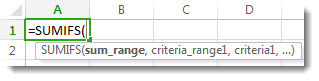
As you type, the rest of the arguments will appear in Formula AutoComplete (not shown here); criteria_range2 is C2:C11, the column of data where criteria2 “Meat” resides.
If you select SUMIFS in Formula AutoComplete, an article opens to give you more help.
Give it a try
If you want to experiment with the SUMIFS function, here’s some sample data and a formula that uses the function.
You can work with sample data and formulas right here, in this Excel for the web workbook. Change values and formulas, or add your own values and formulas and watch the results change, live.
Copy all the cells in the table below, and paste into cell A1 in a new worksheet in Excel. You may want to adjust column widths to see the formulas better
| Region | Salesperson | Type | Sales |
|---|---|---|---|
| South | Ito | Beverages | 3571 |
| West | Lannin | Dairy | 3338 |
| East | Makovec | Beverages | 5122 |
| North | Makovec | Dairy | 6239 |
| South | Jordan | Produce | 8677 |
| South | Lannin | Meat | 450 |
| South | Lannin | Meat | 7673 |
| East | Makovec | Produce | 664 |
| North | Lannin | Produce | 1500 |
| South | Jordan | Meat | 6596 |
| Formula | Description | Result | |
| =SUMIFS(D2:D11,A2:A11,"South", C2:C11,"Meat") | Sums the Meat Sales in Column C in the South region in Column A |
14719 |
Note
- Want more examples? You’ll find more in the SUMIFS function article.
- If you want to create a total value for just one range based on a value in another range, use the SUMIF function.