

You can add underlining to data on a worksheet in several ways. You can underline all or selected text in cells, apply a bottom border to cells or rows, or draw a line to underline cells.
Underline all or selected cell contents
Do one of the following:
- To underline all text or numbers in a cell or range of cells, select cell contents in Excel.
- To underline just a portion of the contents in a cell, double-click that cell, and then select the text or numbers that you want to underline.
If you turn on editing in a cell, you can select the cell contents by double-clicking the cell. If you turn off editing in a cell, you can click the cell and then select the text or numbers that you want to underline in the formula bar. You can also press F2 to edit the active cell, use the arrow keys to place the insertion point, and then use SHIFT+arrow keys to select the contents.
On the Home tab, in the Font group, do one of the following actions:
To apply a single underline, select Underline
 .
.To apply a different style of underline, such as a double underline or a single or double accounting underline (an underline that fills the width of a cell), select the Dialog Box Launcher
 next to Font and then, in the Underline box, select the style that you want to use.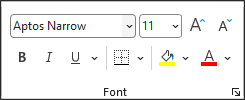
Use a bottom border to underline entire cells or rows
- Select the cell, range of cells, or rows that you want to underline. For more information, see select cell contents in Excel.
- On the Home tab, in the Font group, select the arrow next to Bottom Border
 , and then select a bottom border style on the palette.
Draw a line to underline cells
On the Insert tab, in the Illustrations group, select Shapes.
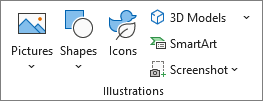
Under Lines, select

Drag to draw a line under the cells that you want to underline.
To draw a perfectly straight line, hold down SHIFT while you drag to draw the line.To change the formatting of the line, select the line.
This action displays the Drawing Tools, adding the Format tab.On the Format tab, in the Shape Styles group, select the formatting options that you want.
Need more help?
You can always ask an expert in the Excel Tech Community or get support in Communities.