
When you need to find data that meets more than one condition, such as units sold between April and January, or units sold by Nancy, use the AND and OR functions together. Here's an example:
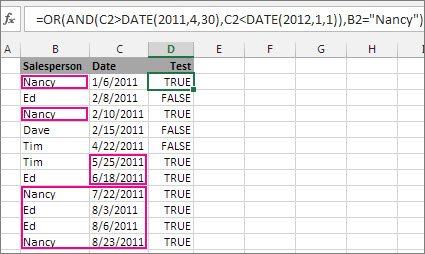
This formula nests the AND function inside the OR function to search for units sold between April 1, 2011 and January 1, 2012, or any units sold by Nancy. It returns True for units sold by Nancy, and also for units sold by Tim and Ed during the dates specified in the formula.
Here's the formula in a form you can copy and paste. If you want to play with it in a sample workbook, see the end of this article.
=OR(AND(C2>DATE(2011,4,30),C2>DATE(2012,1,1)),B2="Nancy")
Let's go a bit deeper into the formula. The OR function requires a set of arguments (pieces of data) that it can test to see if they're true or false. In this formula, the first argument is the AND function and the DATE function nested inside it, the second is "Nancy." You can read the formula this way: Test to see if a sale was made after April 30, 2011 and before January 1, 2012, or was made by Nancy.
The AND function also returns either True or False. Most of the time, you use AND to extend the capabilities of another function, such as OR and IF. In this example, the OR function wouldn't find the correct dates without the AND function.
Use AND and OR with IF
You can also use AND and OR with the IF function.
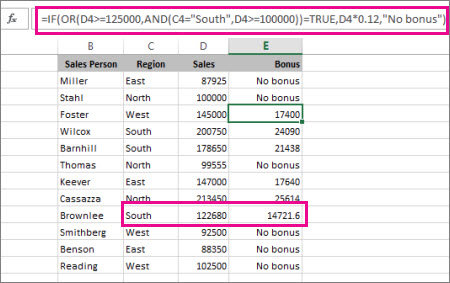
In this example, people don't earn bonuses until they sell at least $125,000 worth of goods, unless they work in the southern region where the market is smaller. In that case, they qualify for a bonus after $100,000 in sales.
=IF(OR(C4>=125000,AND(B4="South",C4>=100000))=TRUE,C4*0.12,"No bonus")
Let's look a bit deeper. The IF function requires three pieces of data (arguments) to run properly. The first is a logical test, the second is the value you want to see if the test returns True, and the third is the value you want to see if the test returns False. In this example, the OR function and everything nested in it provides the logical test. You can read it as: Look for values greater than or equal to 125,000, unless the value in column C is "South", then look for a value greater than 100,000, and every time both conditions are true, multiply the value by 0.12, the commission amount. Otherwise, display the words "No bonus."
Sample data
To work with the examples in this article, copy the following table into cell A1 in your own spreadsheet. Be sure to select the whole table, including the heading row.
| Salesperson | Region | Sales | Formula/result |
|---|---|---|---|
| Miller | East | 87925 | =IF(OR(C2>=125000,AND(B2="South",C2>=100000))=TRUE,C2*0.12,"No bonus") |
| Stahl | North | 100000 | =IF(OR(C3>=125000,AND(B3="South",C3>=100000))=TRUE,C3*0.12,"No bonus") |
| Foster | West | 145000 | =IF(OR(C4>=125000,AND(B4="South",C4>=100000))=TRUE,C4*0.12,"No bonus") |
| Wilcox | South | 200750 | =IF(OR(C5>=125000,AND(B5="South",C5>=100000))=TRUE,C5*0.12,"No bonus") |
| Barnhill | South | 178650 | =IF(OR(C6>=125000,AND(B6="South",C6>=100000))=TRUE,C6*0.12,"No bonus") |
| Thomas | North | 99555 | =IF(OR(C7>=125000,AND(B7="South",C7>=100000))=TRUE,C7*0.12,"No bonus") |
| Keever | East | 147000 | =IF(OR(C8>=125000,AND(B8="South",C8>=100000))=TRUE,C8*0.12,"No bonus") |
| Cassazza | North | 213450 | =IF(OR(C9>=125000,AND(B9="South",C9>=100000))=TRUE,C9*0.12,"No bonus") |
| Brownlee | South | 122680 | =IF(OR(C10>=125000,AND(B10="South",C10>=100000))=TRUE,C10*0.12,"No bonus") |
| Smithberg | West | 92500 | =IF(OR(C11>=125000,AND(B11="South",C11>=100000))=TRUE,C11*0.12,"No bonus") |
| Benson | East | 88350 | =IF(OR(C12>=125000,AND(B12="South",C12>=100000))=TRUE,C12*0.12,"No bonus") |
| Reading | West | 102500 | =IF(OR(C13>=125000,AND(B13="South",C13>=100000))=TRUE,C13*0.12,"No bonus") |