

To automate a repetitive task so you can do the task again with a single click, use the Developer tab in Excel for Mac to record and run a macro. You can also create a macro by using the Visual Basic Editor in Microsoft Visual Basic for Applications (VBA) to write your own macro programming code. If you no longer need a macro, you can delete it.
Record a macro
When you record a macro, the macro recorder captures all the steps required to complete the actions that you want your macro to perform. These steps can include typing text or numbers, clicking cells or commands on the ribbon or on menus, formatting, selecting cells, rows, or columns, and dragging your mouse to select cells on your spreadsheet. You can find the commands for recording, creating, and deleting macros on the Developer tab on the Ribbon.
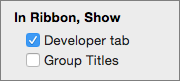
If the Developer tab isn't available, follow these steps to display it:
Select Excel > Preferences > Ribbon & Toolbar.
Under Customize the Ribbon, select Main Tabs and then check Developer.
Select Save and then close Excel Preferences.
To record cell selections relative to the active cell instead of recording fixed cell addresses, select Use Relative References on the Developer tab.
For example, if you record selecting the cell to the right of the active cell, the macro selects the cell to the right wherever you run it. If you don't select Use Relative References, the macro records the exact cell address instead.
On the Developer tab, select Record Macro.
Note
To create a macro from VBE, select Visual Basic. In the code window of the module, type the macro code that you want to use.
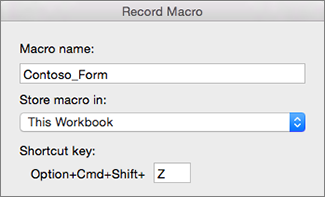
In the Macro name box, enter a name for the macro.
The first character of the macro name must be a letter. Subsequent characters can be letters, numbers, or underscore characters. You can't use spaces in a macro name. An underscore character works well as a word separator. If you use a macro name that is also a cell reference, you might get an error message that the macro name isn't valid.In the Store macro in list, select This Workbook.
In the Shortcut key box, type any lowercase letter or uppercase letter that you want to use.
Note
The shortcut key overrides any equivalent default Excel shortcut key while the workbook that contains the macro is open.
In the Description box, type a description of the macro and select OK.
Complete recording your macro.
On the Developer tab, select Stop Recording.
Delete a macro
- On the Developer tab, select Macros.
- In the list, select the macro that you want to delete, and select the delete button.