
Create a new form
- Start at forms.office.com.
- Select New Form or New Quiz.
- Type a title for your form. You can also provide an optional description.
- Optional: Select Theme to create a color scheme or a theme.
- Select Add new to add a question.
- Choose an option: Choice, Text, Rating, or Date questions or select the drop-down list to see and choose one of these options: Ranking, Likert, File upload, Net Promoter Score, and Section.

Tip
If you use forms.office.com
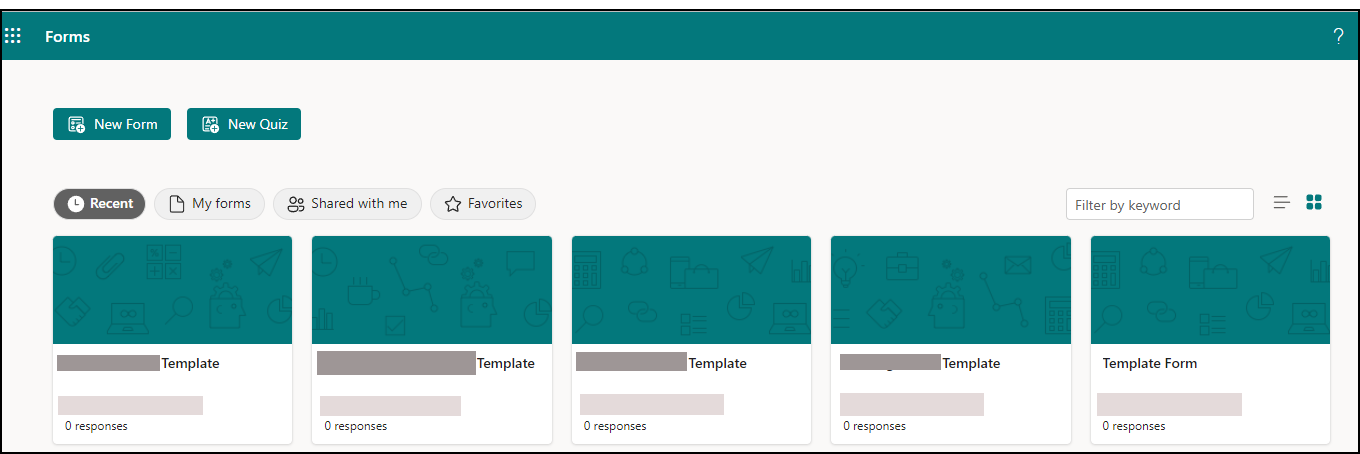
- When you create a form, it is saved and can be used as a template.
- You can create a blank template and name it as a template to share.
Create a form using a template
- Start at forms.office.com.
- Select My forms.
- Select a template.
- Select Preview>Computer or Mobile.
- Select Back to choose another template or edit the selected template.
- To edit a template, select a question to edit.
- Edit the question and/or the options specific to each type of question.
Important
If you start at Office.com you won't see the option to use a template. The option to create a form using a template is only available at forms.office.com.
Preview a form
- Select Preview on the ribbon.
- Select Computer or Mobile.
- Select Back to continue editing your form.
