
You can save a Loop page as a template to ensure consistency, efficiency, and collaboration within your team. A Loop page template can provide a standardized format, making it easier for team members to navigate and understand content, while reducing the time spent on creating new pages from scratch.
Save your Loop page as a template
Tip
Learn more, Welcome to Copilot in Loop
In the left navigation bar, select the page you want to save as a template.
Select More Page options
 and then choose Save page as template.
Select the Icon button if you want to apply an icon to your page template.
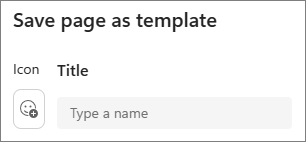
Under Title, enter a name for your page template.
Select Save as template.
Your page is now saved as a template in the Template Gallery.
Note
The template is saved in the workspace where it was created and can only be accessed by members of that workspace.
Access your newly created template
Select Create new and then choose Page.
At the bottom of your Loop page, select Use a Loop template.
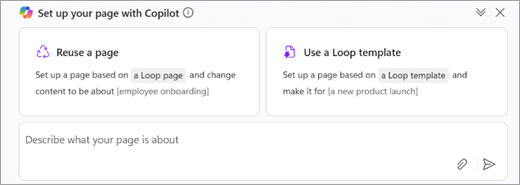
In the Template Gallery under My workspace templates, find and select your template.
Select Use template.
Tip
If you want to use the template, but provide Copilot with additional instructions, select Edit with Copilot.