
Copilot Pages supports inline comments to help you and your team collaborate efficiently. You can add comments to specific content, reply to others, and resolve threads to keep your work organized.
Note
- If you have a work or school (Entra ID) account, Copilot Pages is available to those who have SharePoint or OneDrive storage, including ones without a Microsoft 365 Copilot license.
- If you have a personal Microsoft account, Copilot Pages is available if you're a Microsoft 365 Personal, Family, Premium, or Pro subscriber. Learn more about Microsoft Copilot licensing and Microsoft Copilot plans.
Note
The feature described in this article is rolling out gradually and may not yet be available in your experience.
Add a comment
Use the link provided in email, Teams, or another app to access the shared page. Make sure to sign in with your Microsoft 365 credentials to view and interact with the page.
Highlight text to show a floating toolbar, and then select the Comment button.
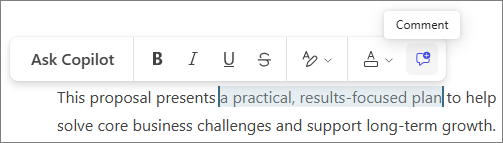
In the Comments pane, enter your comment, and then select Send
 to submit it.
Tip
To tag specific people in your comment, enter @ and their name.
Your comment will appear on the right side of the page. If you don't see it right away, select the Comment icon
 to view it.
Edit a comment
Select Actions
 in the upper right corner of the comment you want to edit.
Select Edit.
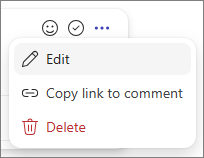
Make your changes, and then select the checkmark
 to submit them.
Reply to a comment
In the text box under the comment you want to respond to, add your reply.
Select Send
to submit it.Tip
Select the emoji picker icon to find an emoji to include in your comment.
Delete a comment
Select Actions
in the upper right corner of the comment you want to edit.Select Delete.
Note
Deleting the original, top-level comment in a thread will remove the entire conversation thread.
Resolve a comment thread
Hover over the comment you want to resolve, and then select the Resolve icon.
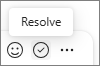
No additional comments can be added to the conversation thread.
Note
Select the Reopen icon in the upper right corner of the comment or conversation thread to reopen it and allow additional comments to be added.
More ways to work with Copilot Pages
Get started with Microsoft Copilot Pages