
Use the Researcher agent in Microsoft 365 Copilot Notebooks to run complex, multi-step research with OpenAI. Just ask Copilot, iterate, and get enterprise-ready insights.
Note
Copilot Notebooks is available to Microsoft 365 Copilot and Copilot Chat licensed users. Accounts must have a SharePoint or OneDrive license (service plan) to create notebooks. Copilot Notebooks is also available for Microsoft 365 Personal, Family, and Premium subscribers. Learn more about Microsoft 365 Copilot licensing and Microsoft 365 Copilot plans.
Start with Researcher in your notebook
On the Notebooks home page, select an existing notebook.
Note
New to Copilot Notebooks? Learn how to create your first notebook. New to Researcher agent in Copilot? Learn more about Researcher.
Within the Message Copilot compose box, select Researcher.
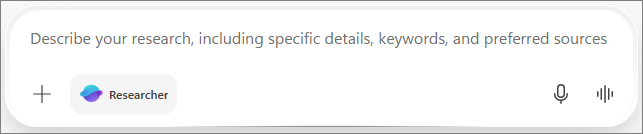
Enter your prompt. You can describe your research needs and include sources, focus areas, files, and websites. For example:
 Compare Proseware, Inc.'s revenue from /Estimated Revenue 2024 with the 2023 estimated revenue.
Select Send.
Review the response in Copilot Chat.
Note
Researcher integration with Copilot Notebooks will incorporate external grounding, which may include content contained within the notebook.
View a list of sources
At the bottom of the Chat response, select the See all results dropdown button to review a list of all the referred sources.
Add the response to a page
Below Copilot's response, select Edit in Pages.
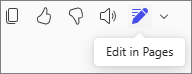
This will create a page and open it side-by-side with the chat.
Continue your conversation with Researcher or cancel the selection of Researcher in the Chat box to go back to a quicker, Notebook-focused conversion with Copilot.
Explore other AI tools in your notebook
In addition to Researcher, you can also use other agents, such as Analyst for data-heavy tasks, or Designer for visuals. Learn more about how to add AI tools to your Microsoft 365 Copilot Chat prompts.
Provide feedback
- To provide feedback on this experience, select Settings and more
 in the lower left corner next to your name.
 - Select Feedback.
More ways to work with Copilot Notebooks
Get started with Microsoft 365 Copilot Notebooks
Get started with Researcher in Microsoft 365 Copilot
Provide custom instructions for your Microsoft 365 Copilot Notebook