When you're creating a document, workbook or presentation you may want to include hyperlinks to other files that you've worked on recently.
This feature is only available if you have a Microsoft 365 subscription. If you are a Microsoft 365 subscriber, make sure you have the latest version of Office.
To add a link to a recently used file:
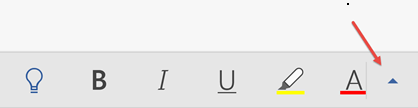
Place the cursor at the spot in the file where you would like to insert the link.
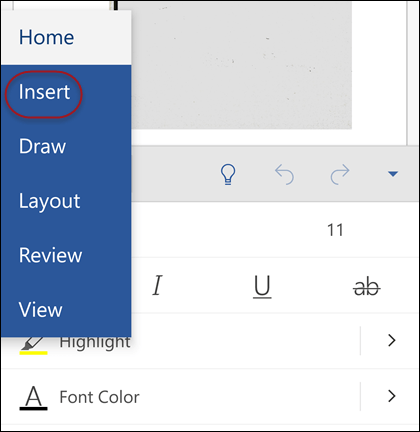
Select the Insert tab on the ribbon.
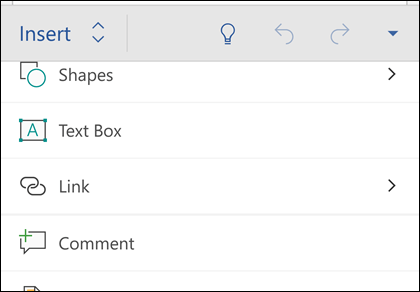
Select the drop arrow next to Link on the ribbon. It's important to select that drop down arrow to access the link gallery, otherwise you'll get the Insert Hyperlink dialog box.
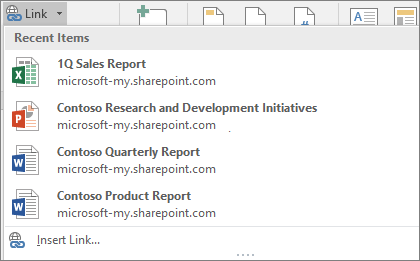
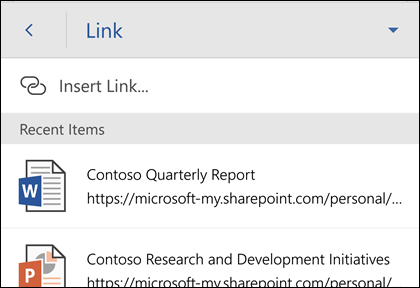
Select the file you'd like to insert from the list. If you don't see the file you wanted to insert on the list, select Insert Link at the bottom of the gallery for the Insert Hyperlink dialog, then navigate to the file you want and insert it.
Note
Only files stored in the cloud will be shown on the link gallery.
When you insert the link the title of the file will be inserted at the cursor location.

Tip
If you'd like to apply the link to some custom text, type the text in your file, select it with your mouse and then continue from step 2 above. The text you selected will become the hyperlink to the related file.