
Last updated: June 2026
What's changed
Copilot in Word, Excel, and PowerPoint is becoming a more connected, integrated part of how you create, analyze, and collaborate, rather than a separate tool. As part of that work, we've consolidated how you open Copilot into a single, consistent entry point: the Copilot Dynamic Action Button, anchored in the corner of your document.
Select the Dynamic Action Button to open the Word, Excel, or PowerPoint Agent in the chat pane on the right. Copilot's capabilities haven't changed. Only how you get to them.
Note
The Copilot Dynamic Action Button only appears for users who have access to Copilot (through a Microsoft 365 Personal, Family, or Premium subscription; or a Microsoft Copilot license). If you don't have access to Copilot, you won't see the button. To check your license, see What Copilot license do I have.
For what Copilot can do in each app, see Get started editing with Copilot in Office.

Where to find the Copilot button
The Dynamic Action Button appears in a consistent corner location in Word, Excel, and PowerPoint, on Windows, Mac, and the web. Select it any time you want to open Copilot, whether you're starting from a blank document or working in an existing one.
Note
Outlook is not affected by this change. Copilot in Outlook continues to use its existing entry points. See Copilot toggle for Outlook-specific controls.
Open Copilot
- Open a document in Word, Excel, or PowerPoint.
- Select the Copilot Dynamic Action Button in the corner of your document, or use a keyboard shortcut (see below).
- The Word, Excel, or PowerPoint Agent opens in the chat pane on the right. Type a prompt, choose a suggested action, or ask a question about your file.
For app-specific walkthroughs, see Welcome to Copilot in Word, Welcome to Copilot in Excel, Welcome to Copilot in PowerPoint.
Keyboard shortcuts
Copilot keyboard shortcuts are being unified across Microsoft 365 apps and platforms, so keyboard and screen reader users have a consistent way to reach Copilot wherever they're working.
- Windows (Win32 and Web): Alt + C. Sets focus on the Dynamic Action Button in the canvas. If the Copilot chat pane is already open, focus moves to the chat edit box so you can begin typing immediately.
- Mac (Desktop and Web): Cmd + Control + I. Sets focus on the Dynamic Action Button in the canvas.
- All platforms: F6. Moves focus to the Dynamic Action Button in the canvas.
Once focus is on the Dynamic Action Button, use the up arrow to move between suggested prompts.
Note
If you previously used Alt + H, F, X to open the Copilot pane, you can now press F6 instead. The simplified Alt + C and Cmd + Control + I shortcuts are rolling out across apps and languages. Until they're available in your app or language, F6 works everywhere.
For more on the design of the new entry point and shortcuts, see the Microsoft 365 Insider blog post A more discoverable Copilot experience in Word, Excel, and PowerPoint.
Dock the Copilot button
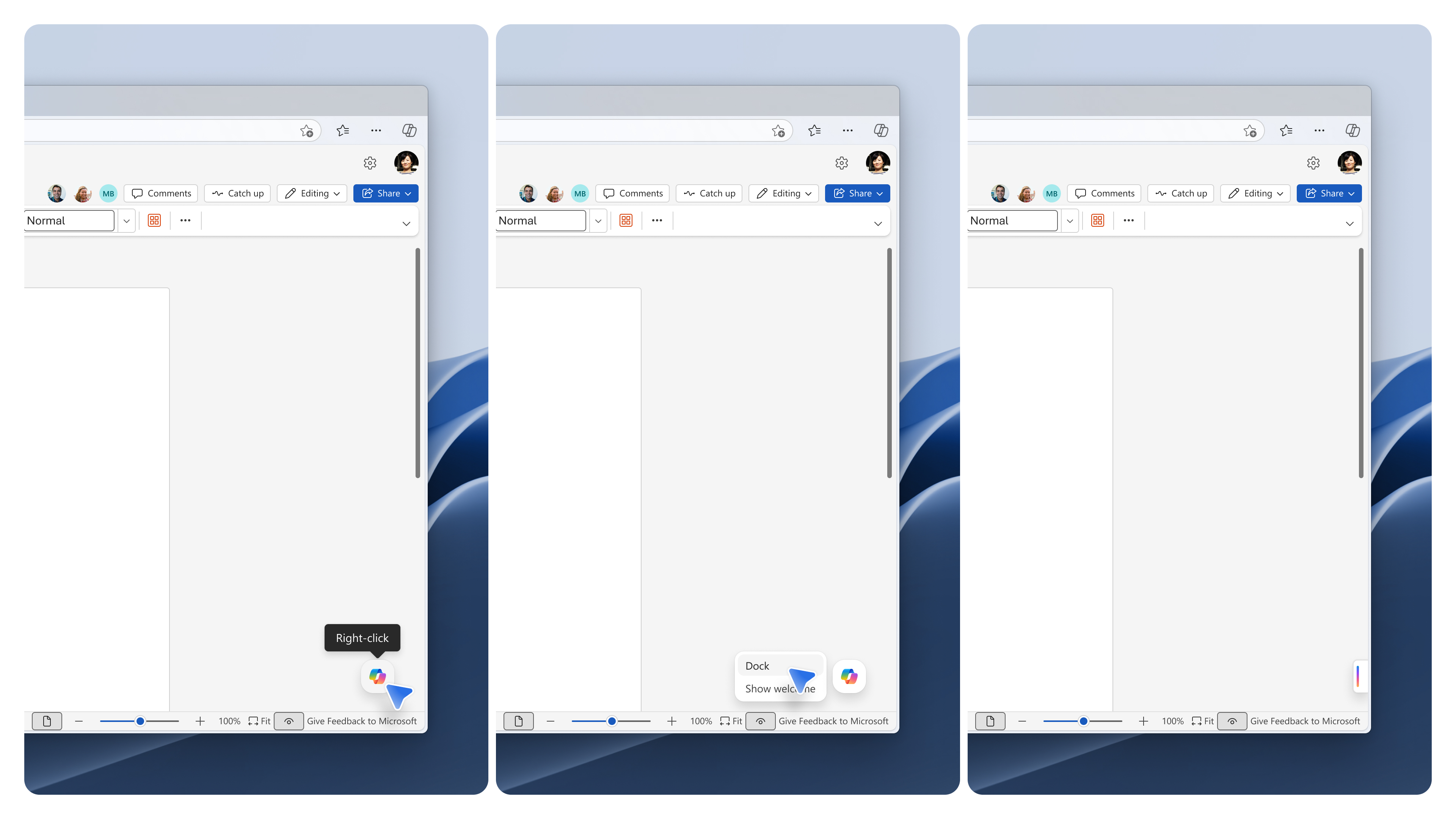
We've heard your feedback: Copilot should feel helpful and intuitive, not disruptive, and you should always feel in control. When you want to focus on your content and tuck the Dynamic Action Button out of the way, you can dock it. You can dock in two ways:
- Right-click the Copilot Dynamic Action Button and select Dock.
- Or drag the button to the side of your content (right side for left-to-right locales, left side for right-to-left locales).
To re-engage with Copilot after docking, select the smaller docked icon or drag it back into the canvas. Docking persists for the duration of your working session.
Move to the ribbon
You can move the Dynamic Action Button to the ribbon if you prefer working from there, for example to keep the canvas clear or to match the way you used Copilot before.
To move the button to the ribbon:
- Right-click the Copilot Dynamic Action Button in the corner of your document.
- Select Move to ribbon.
On Windows and macOS, your choice is remembered across sessions, per app. On the web, it applies for your current working session; support for remembering your choice across browser sessions is coming soon. Move to ribbon is available on Windows in Build 16.0.20129.15140 or later, and on macOS in Build 16.109.525.2 or later.

Turn off the Copilot button
If you'd prefer not to use Copilot, you can turn it off if you have a personal Microsoft account (for example, an outlook.com email address). The clearest path is to clear the Enable Copilot checkbox in your app settings, which hides Copilot entry points without changing your broader account privacy settings
For full step-by-step instructions for personal accounts, see Turn off Copilot in Microsoft 365 apps.
If you're managing Copilot in Outlook (including personal email accounts in Outlook), see Copilot toggle.
If you don't see the Copilot button
If the Dynamic Action Button isn't showing up in your document, the most common causes are licensing, account, update channel, or privacy settings. For full step-by-step troubleshooting, see How to find and enable missing Copilot button in Microsoft 365 apps.
Not sure what Copilot subscription you have? See What Copilot license do I have.
Frequently asked questions
Did Copilot's features change?
No. Only the entry point changed. The Word, Excel, and PowerPoint Agent in the chat pane gives you the same Copilot capabilities you had before.
Is this rolling out to everyone?
Yes. The Dynamic Action Button is rolling out worldwide to all Microsoft 365 users of Word, Excel, and PowerPoint on Windows, Mac, and the web. Worldwide rollout began in April 2026 and will complete by June 2026. Customers in GCC, GCC High, and DoD environments will see the update starting in October 2026.
Does this affect Outlook?
No. This change is limited to Word, Excel, and PowerPoint. For Outlook-specific Copilot controls, see Copilot toggle.
I'm an IT admin. Do I need to do anything?
No action is required. There is no change to admin configuration, policy behavior, or Copilot availability settings. You may optionally let your users know about the new entry point and update any internal help content or training materials that document Copilot entry points.
For Enterprise users, IT admins can configure whether or not Copilot Chat is pinned in Microsoft 365 apps. Learn more: Pin Microsoft Copilot Chat in the Microsoft 365 apps.
Where can I learn more about the Word, Excel, or PowerPoint Agent?
See Frequently asked questions about Office Agent.
How is my data handled when I use Copilot from a personal account?
See Copilot in Microsoft 365 apps for home: your data and privacy.