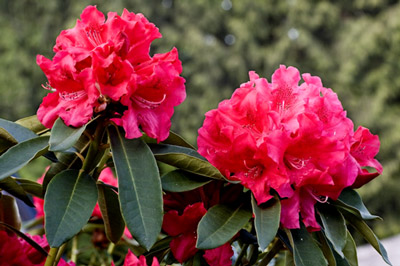
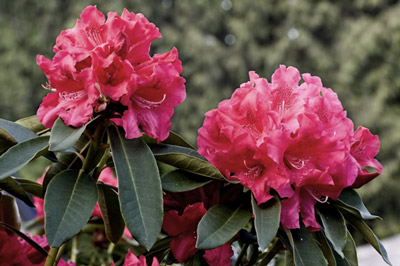
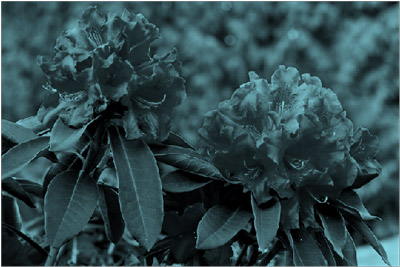
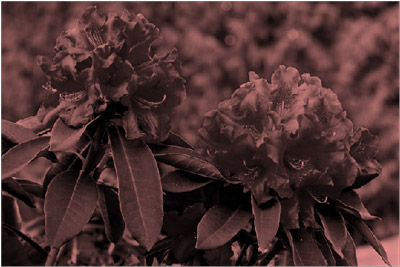
You can adjust the color intensity (saturation) and color tone (temperature) of a picture or recolor it. You can apply multiple color effects to your picture.
Change the color of a picture
Click the picture that you want to change.
Select the Picture Format tab, and in the Adjust group, select Color.

If you don't see the Picture Format tab on the ribbon, make sure that you've selected a picture. You may have to double-click the picture to select it and open the Picture Format tab.
Do one of the following:
- To change the saturation of a color (higher saturation is more vivid, lower saturation is more grey), click one of the common adjustments offered under Color Saturation.
- To change the color temperature, click one of the common adjustments offered under Color Tone.
- To apply a built-in stylized effect, such as grayscale or sepia tone, click one of the common adjustments offered under Recolor.
Tip
You can move your mouse pointer over any of the effects to see a live preview of how your picture will look with that effect applied before you click it.
Optionally, you can fine-tune the intensity of your color change by clicking Picture Color Options, or you can customize your own color by clicking More Variations > More Colors.
See also
Make a picture transparent
Change the brightness, contrast, or sharpness of a picture
Apply an artistic effect to a picture
Change the color of a picture
Click the picture that you want to change.
Under Picture Tools, select the Format tab, and in the Adjust group, select Color.

If you don't see the Format or Picture Tools tabs, make sure that you've selected a picture. You may have to double-click the picture to select it and open the Format tab.
Do one of the following:
- To change the saturation of a color (higher saturation is more vivid, lower saturation is more grey), click one of the common adjustments offered under Color Saturation.
- To change the color temperature, click one of the common adjustments offered under Color Tone.
- To apply a built-in stylized effect, such as grayscale or sepia tone, click one of the common adjustments offered under Recolor.
Tip
You can move your mouse pointer over any of the effects to see a live preview of how your picture will look with that effect applied before you click it.
Optionally, you can fine-tune the intensity of your color change by clicking Picture Color Options, or you can customize your own color by clicking More Variations > More Colors.
See also
Make a picture transparent
Change the brightness, contrast, or sharpness of a picture
Apply an artistic effect to a picture
Original picture
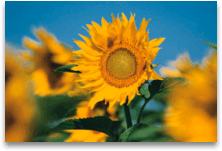
With Color Saturation changed to 66%

With Recolor effect
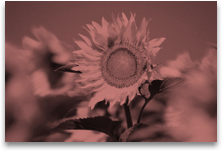
Click the headings below for more information.
Change the color saturation of a picture
Saturation is the intensity of the color. A higher saturation makes a picture look more vivid, whereas a lower saturation makes the colors look more grey.
Click the picture and the Format Picture pane appears.
On the Format Picture pane, click
 .
.
Click Picture Color to expand it.

Under Color Saturation, move the saturation slider as necessary, or enter a number in the box next to the slider.
Change the color tone of a picture
When color temperatures are not measured correctly by a camera, a color cast (too much of one color dominating the picture) can appear on the picture, making the picture look too blue or too orange. You can adjust this by increasing or decreasing the color temperature to enhance the details of the picture and make the picture look better.
Click the picture and the Format Picture pane appears.
On the Format Picture pane, click
.
Click Picture Color to expand it.
Under Color Temperature, move the temperature slider as necessary, or enter a number in the box next to the slider.
Recolor a picture
You can quickly apply a built-in stylized effect, such as grayscale or sepia tone, to your picture.
Click the picture and the Format Picture pane appears.
On the Format Picture pane, click
.
Click Picture Color to expand it.
Under Recolor, click any of the available presets.
If you want to switch back to the original picture color, click Reset.
Change the transparency of a color
You can make part of a picture transparent to better show text that is layered on top of it, to layer pictures on top of each other, or to remove or hide part of a picture for emphasis. Transparent areas in pictures are the same color as the paper on which they are printed. In an electronic display, such as a Web page, transparent areas are the same color as the background.
Click the picture and the Format Picture pane appears.
On the Format Picture pane, click
.
Click Picture Transparency to expand it.

You can either apply one of the presets, move the transparency slider, or enter a number in the box next to the slider.
See also