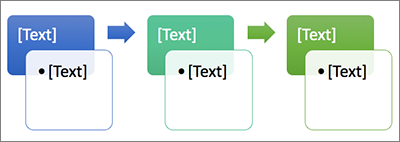
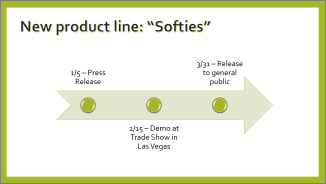
If you want to create a graphical representation of a sequence of events, such as the milestones in a project or the main events of a person's life, you can use a SmartArt graphic timeline. After you create the timeline, you can add more dates, move dates, change layouts and colors, and apply different styles.
Create a timeline
On the Insert tab, select
 SmartArt.
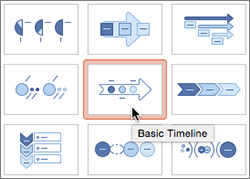
In the Choose a SmartArt Graphic gallery, select Process, and then double-click a timeline layout.
Tip
There are two timeline SmartArt graphics: Basic timeline and Circle Accent Timeline, but you can also use almost any process-related SmartArt graphic.

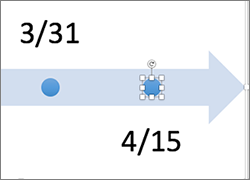
Select [Text], and then type or paste your text in the SmartArt graphic.
Note
You can also open the Text Pane and type your text there. If you do not see the Text Pane, on the SmartArt Tools Design tab, select Text Pane.
Add more dates to your timeline
Select a shape in the timeline.
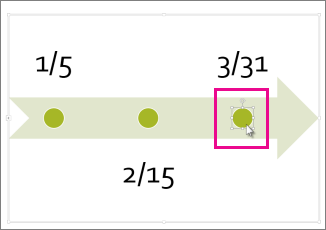
On the SmartArt Design tab, do one of the following:
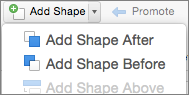
- To add an earlier date, select Add Shape, and then select Add Shape Before.
- To add a later date, select Add Shape, and then select Add Shape After.
In the new date box, type the date that you want.
Move a date in your timeline
On the timeline, select the date you want to move.
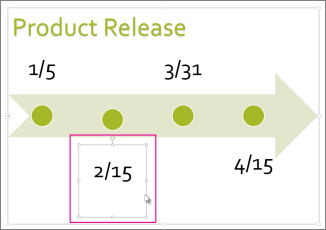
On the SmartArt Design tab, do one of the following:
- To move a date sooner than the selected date, select Move Up.
To move a date later than the selected date, select Move Down.
Change to a different timeline layout
Select the SmartArt graphic timeline.
On the SmartArt Design tab, in the Layouts group, select
 Change Layout.
Note
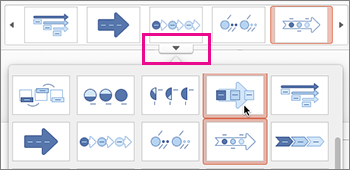
To view only the timeline and process-related layouts, at the bottom of the layouts list, select More Layouts, and then click Process.
Pick a timeline or process-related SmartArt graphic, like the following:
- To show progression in a timeline, click Accent Process.

- To create a timeline with pictures or photos, click Continuous Picture List. The circular shapes are designed to contain pictures.

- To show progression in a timeline, click Accent Process.
Change the colors of your timeline
Click the SmartArt graphic timeline.
On the SmartArt Design tab, click
 Change Colors.
Note
If you don't see the SmartArt Design tab, make sure you've selected the timeline.
Select the color combination that you want.
Tip
Place your pointer over any combination to see a preview of how the colors look in your timeline.
Apply a SmartArt style
A SmartArt style applies a combination of effects, such as line style, bevel, or 3-D perspective, in one click, to give your timeline a professionally polished look.
Select the timeline.
On the SmartArt Design tab, choose the SmartArt style you want.
Tip
For more styles, select
Quick Styles, on the right corner of the SmartArt Styles box.