You can reverse (or mirror) an image or other object by using:
Rotate > Flip Horizontal

You can reverse text by using the 3-D Rotation options.

You can rotate or turn an image or other object by using:
Rotate > Rotate Right or Rotate Left

Reverse an image
- Select the picture.
- Click the Picture Format tab on the toolbar ribbon, and then click Rotate > Flip Horizontal.
Alternatively, you can turn a picture upside down by clicking Rotate > Flip Vertical.
Reverse text
- Click the edge of the box that contains the text.
- Click the Format (or Shape Format) tab on the toolbar ribbon, and then click Shape Effects > 3-D Rotation > 3-D Rotation Options.
- In the 3-D Rotation section, change X Rotation to 180°.
- In Word, if this action doesn't immediately reverse your text, select the Layout and Properties button:
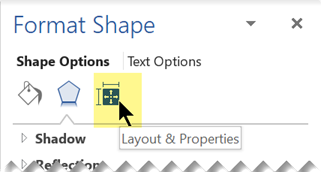
- In the Text Box section, clear the Do not rotate text box.
Rotate a picture or other object
Select the object.
Click the Shape Format tab or Picture Format tab on the toolbar ribbon and then click Rotate > Rotate Right 90° or Rotate Left 90°.
Or, you may rotate the object any degree you want by clicking the rotation handle of the object and turning your mouse in the direction you want to turn the object.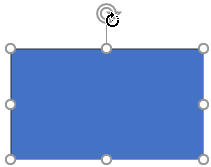
Flip text inside a shape
When you have text inside a shape and you rotate or flip the shape vertically, the text also gets rotated or flipped.
But when you horizontally flip a shape that has text in it, the text is not flipped. To flip the text in that situation, select the text in the shape and then go to the "Reverse text" procedure and begin with step 2.