
If you started an update of Office and received the error message, "Something went wrong..." and error code 30088-26, try the following to fix this issue. We've listed the most common solutions first, so try them in order.
Solution 1 - Repair Office from the Control Panel
The steps to access the repair tool vary depending on your operating system. Choose your operating system from the dropdown list below.
Select your operating system
Windows 10
Right-click the Start button
 (lower-left corner), and select Apps and Features on the pop-up menu.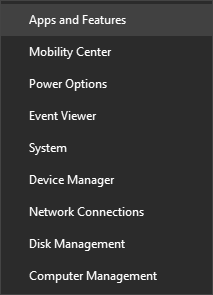
Select the Microsoft Office product you want to repair, and select Modify.
Note
This will repair the entire Office suite even if it's just one application you want to repair such as Word or Excel. If you have a standalone app installed, then search for that application by name.
In the window How would you like to repair your Office Programs, select Online Repair > Repair to make sure everything gets fixed.
Follow the instructions on the screen to complete the repair.
Windows 8 or 8.1
Right-click the Start button
(lower-left corner), and select Control Panel from the pop-up menu.
From Category view, under Programs, select Uninstall a program.
Right-click the Microsoft Office product you want to repair, and from the drop-down, select Change.
Note
If you have a suite such as Microsoft 365 Family, Office Home & Student 2016, or Office Home and Student 2013, search for the suite name, even if it's just a particular application you want to repair such as Word or Excel. If you have a standalone application such as Word or Excel, search for the application name.
In How would you like to repair your Office Programs, select Online Repair to make sure everything gets fixed, and then select Repair.
Follow the remaining instructions on the screen to complete the repair.
Windows 7 or Vista
Click the Start button
 > Control Panel.
From Category view, under Programs, select Uninstall a program.
Click the Office product you want to repair, and then click Change.
Note
If you have a suite such as Microsoft 365 Family, Office Home & Student 2016, or Office Home and Student 2013, search for the suite name, even if it's just a particular application you want to repair such as Word or Excel. If you have a standalone application such as Word or Excel, search for the application name.
In How would you like to repair your Office Programs, select Online Repair to make sure everything gets fixed, and then select Repair.
Follow the remaining instructions on the screen to complete the repair.
Solution 2 - Uninstall and reinstall Office
If repairing Office doesn't resolve this error you may have to completely uninstall and then reinstall Office. Follow the steps below.
Tip
Uninstalling Office only removes the Office applications from your computer, it won't remove any of the files, documents, or workbooks you created using the apps.
Use the uninstall troubleshooter to uninstall Microsoft 365, Office 2021, Office 2019, or Office 2016 from your Windows PC.
Select the button below to start the uninstall troubleshooter.
Click Open if you get a pop-up window indicating This site is trying to open Get Help.
Follow the prompts on the remaining screens and when prompted, restart your computer.
Select the steps for the version of Office you want to install or reinstall.
Microsoft 365 | Office 2024 | Office 2021 | Office 2019 | Office 2016
Important
- The uninstall troubleshooter currently can't uninstall Office 2024.
- Run the troubleshooter on the same Windows PC with the Microsoft 365 or Office product you want to uninstall.
- You need to be on Windows 10 or higher to run the troubleshooter.
Tip
If the Microsoft 365 uninstall troubleshooter doesn't completely uninstall Microsoft 365 or Office from your PC, you can try to manually uninstall Office.