
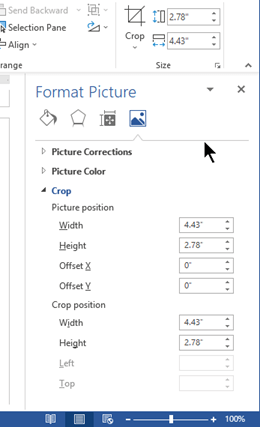
In Word, Excel, and PowerPoint, a task pane is a window that attaches itself to the edge of the app window you're working in. The Format Picture pane is one example:
Resize a task pane
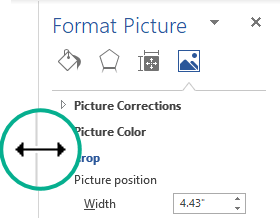
You can widen or narrow the pane by pointing your mouse at the inside margin of the pane until the pointer becomes a two-headed arrow, then clicking and dragging to resize.
Dock or undock a task pane
By default a task pane is "docked" to the side edge of the app window.
You can undock the pane and make it a free-floating window that you can place anywhere on your screen:
On the title bar of the pane until, click the downward pointing arrow
 , and then select Move.
The pointer becomes a four-headed arrow.Click and drag to move the pane where you want it.
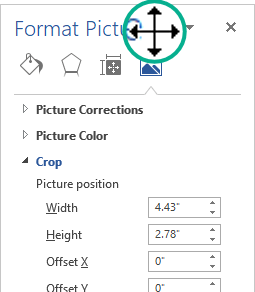
Release the mouse when the window is positioned satisfactorily.
When you close a pane, Office remembers its last size and position, and the next time it opens the pane in that same size and position.
Re-dock a task pane
To re-dock a floating task pane, simply drag it to the right edge of your screen. The pane returns to its default docked position.