
Since October 2025, the Microsoft 365 Personal 24-month free subscription plan has been included with some Office Pre-installed PCs sold in Japan only.
In this plan, you can start the 3-month free trial subscription instead of the 24-month full subscription and experience the features and services of Microsoft 365 Personal for 3 months. And then, if you feel that the services of Microsoft 365 Personal are unnecessary for you, Microsoft will offer Office Home and Business 2024 for free package after the trial subscription expired. And you can use the Microsoft 365 client apps with the Office Home and Business 2024 license continuously.
Important
Microsoft grants your Microsoft account eligibility to get the Office Home and Business 2024 for free for 90 days from the end date of your 3-month trial subscription. Please complete to order this offer as soon as possible and redeem the product key with your Microsoft account. If more than that days have passed, your Microsoft account will lose eligibility to get this Office Home and Business 2024 for free.
1: Start from the notification bar in a client app
Step 1:
Start a preinstalled Microsoft 365 app from Start menu (Word, Excel or PowerPoint) after your trial subscription expired
Step 2:
The Your Microsoft 365 subscription has expired dialog opens on the app.
Select the 'No, thanks' button, and close this dialog.

Step 3:
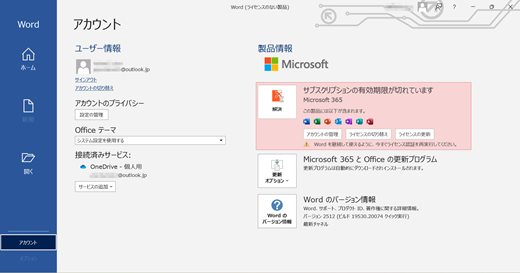
Select Account menu in the left pane and check the status of the Product Information in Account screen.
You can confirm that the client apps are unlicensed due to the string with pink shading, Your subscription has expired is displayed under the Product Information. (All functions of the apps are locked except file viewing and printing.)
Next, select Home menu in the left pane and then Blank Document icon to open a blank document window.
Step 4:
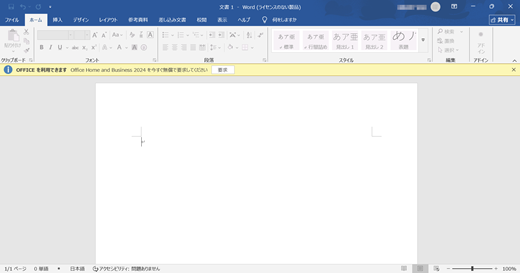
The notification bar in yellow appears in the window to recommend claiming the Office Home and Business 2024 free for you.
Select the Claim button in it.
Step 5:
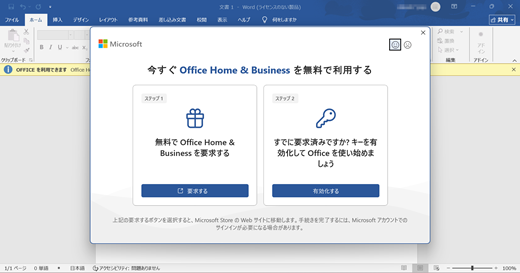
The Use the Office Home and Business for free right now dialog opens on the client app.
Select Claim button inside of the left box titled as "Step1 Claiming your Office Home and Business for free" in that dialog.
2: Order the Office Home and Business 2024 for free
Step 6:
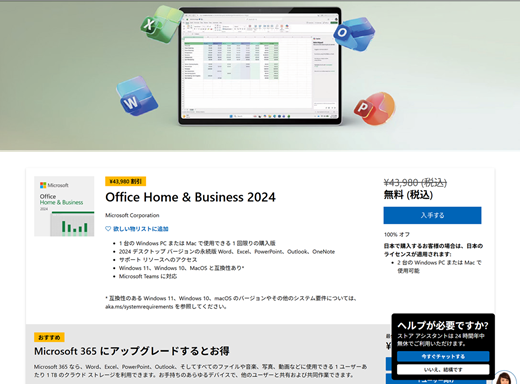
The product description page of Office Home and Business 2024 in Microsoft store opens.
Please sign in this page with your Microsoft account that was used for the 3-month trial subscription.
If you can confirm that the price is changed to "Free (including tax)" in this page, your Microsoft account has been granted the eligibility to get the Office Home and Business 2024 for free.
Select the Get button under the price.
Important
- If the notification bar of "Claim Office Home and Business 2024" never appear in the document window in Step 4, please check the email from Microsoft that inform you your 3-month trial subscription has been expired. As that email also contains the button, Claim to the same product description page, you can go to that page from the email.
- If you cannot find that notification email in in-box tray of your mail app, please directly enter the URL: https://go.microsoft.com/fwlink/?linkid=2330590 into your web browser and access that page.
Caution
If the standard price (not 'free') is shown on that page, first click on the account icon to make sure you are signed in with your own account. If you are signed in with your own account and it still doesn't show 'free', contact Microsoft support.
Step 7:
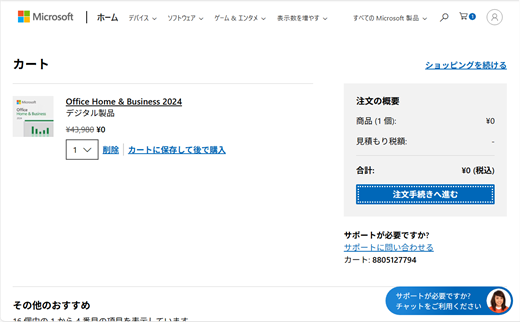
The Cart page opens with the package added.
Check the total amount is displayed with "¥0".
Select the Proceed to order button.
Step 8:
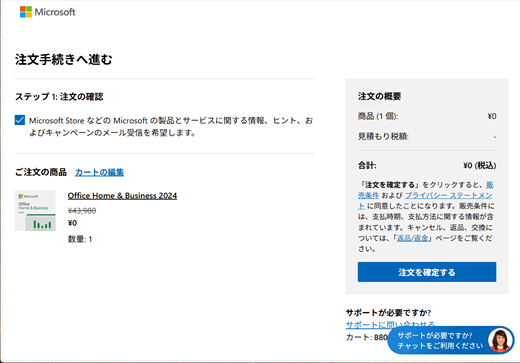
The Proceed to order page opens.
Select the Determine your order, if the price, quantity and product name are correct.
Step 9:
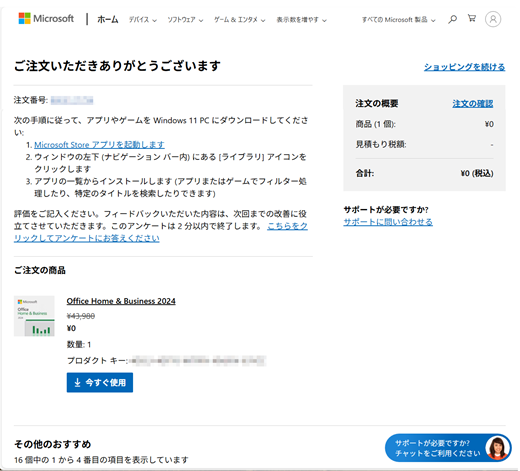
The Thank you for your order page opens.
You've got the Product key of your Office Home and Business 2024 for free by your ordering.
(As this point, you don't complete activation of the client apps with the license of Office Home and Business.)
3: Activate the client apps with the product key
There are two ways to activate the client app with a product key.
Please select either tab below.
Step 10:
Copy and save the product key you got at Step 9 into a Memo app.
Tip
If you closed the Thank you for your order page before save the product key, please access the Order history in your Microsoft Account dashboard. You can confirm the product key in the details of the your order of "Office Home and Business 2024 free package" listed in the Order history.
Step 11:
Return to the client app with the Use the Office Home and Business for free right now dialog opened at Step 5.
Select the Activate button inside of the right box titled as "Step2 Already claimed? Activate your key and get started with Office" in the dialog.
Step 12:
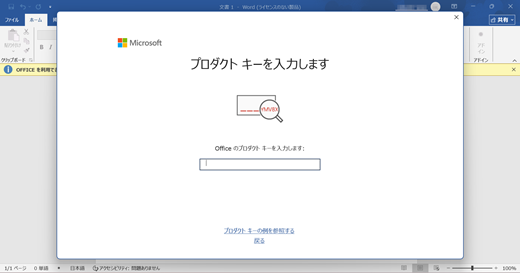
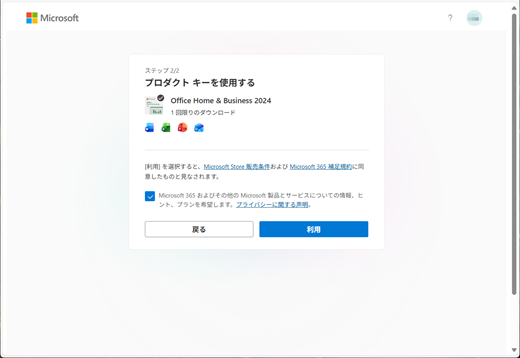
Enter a product key dialog opens on the app.
Enter the saved product key properly and then select the Activate Office button in the dialog.
Note
- Please be careful not to make any typos when you enter the key in the dialog.
- If the "Sign In" dialog opens after select the 'Activate Office' button, please complete the sign-in process.
Step 13:
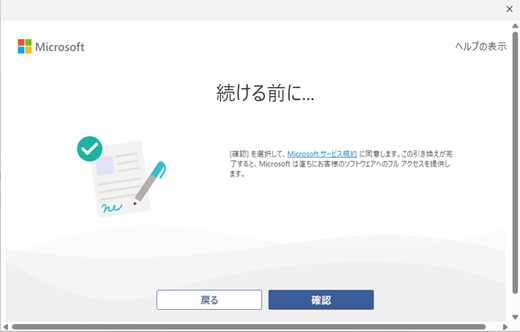
The Before continue... dialog opens.
This indicates that you need to accept to the Microsoft Services Agreement before continue the redemption process.
Select Confirm button to accept the agreement.
Step 14:
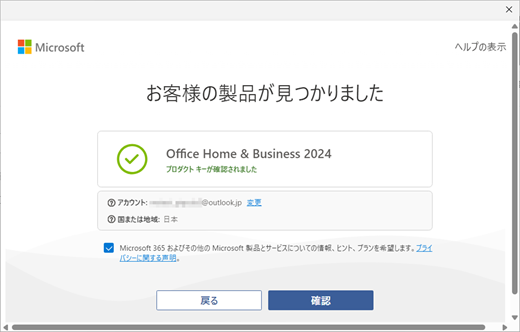
The We found your product dialog opens.
This indicates the product name included with the product key and it is ready to be redeemed with your Microsoft account.
Select the Confirm button if the information is correct.
(If you want to change to a different account, select the Change link in this dialog.)
Step 15:
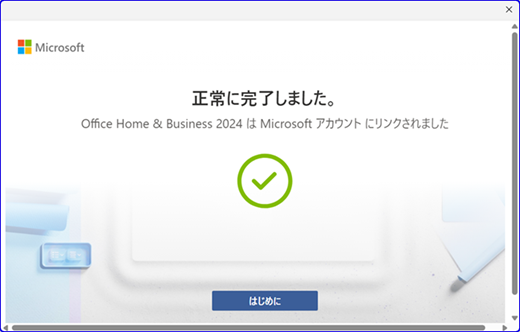
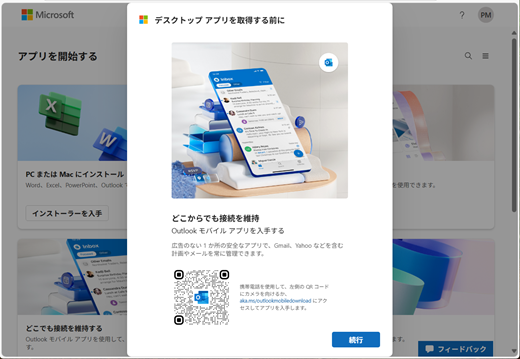
The Completed successfully dialog opens.
The product key has been redeemed and your own account has got the entitlement of the 'Office Home and Business 2024'.
Select the Get started button.
Step 16:
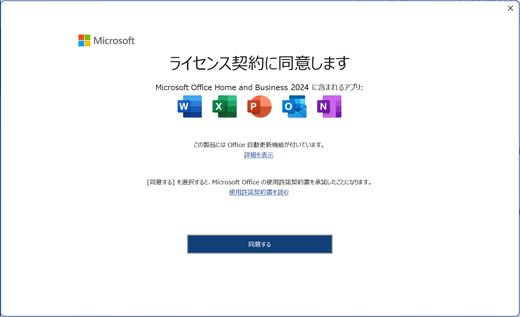
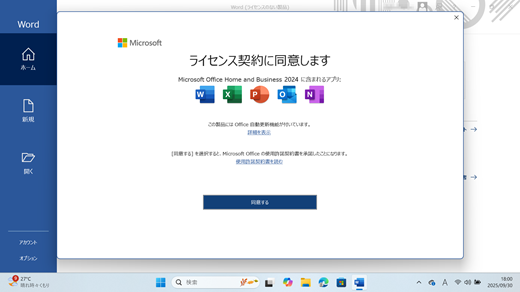
The Accept the License agreement dialog opens.
The client apps have been activated again by your account.
Select the Accept button to accept the software license agreement of Microsoft Office Home and Business 2024.
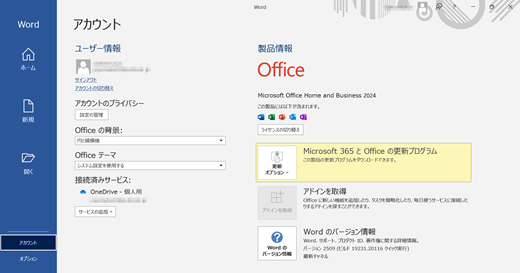
Step 17:
Select the Account menu in the File tab in the document .
Look at the Product information in Account screen.
You can check the state that the app is licensed with "Microsoft Office Home and Business 2024".
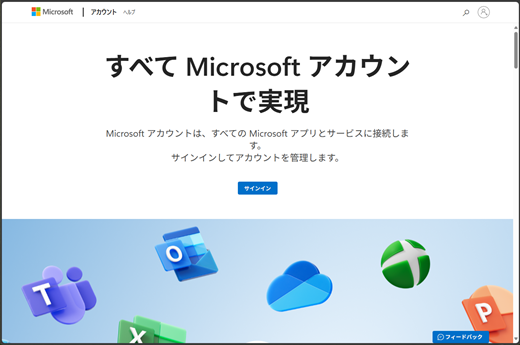
Step 18:
Access the Microsoft account dashboard and sign in with your own account.
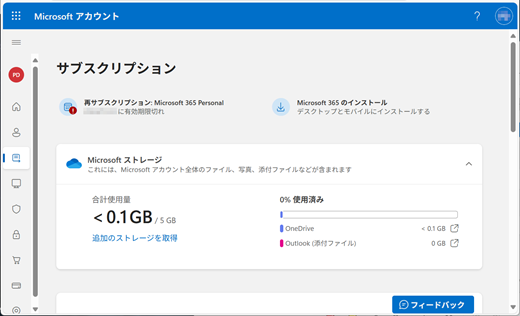
Step 19:
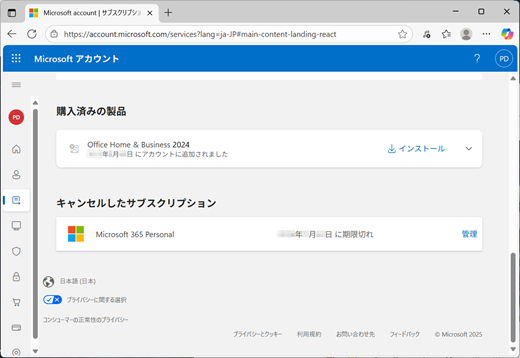
Go to Subscription page in Microsoft account dashboard.
Please scroll down to the bottom of the page and confirm the Microsoft Office Home and Business 2024 is listed under the "Products you've purchased".
With this, you can confirm your Microsoft account now has the entitlement of 'Office Home and Business 2024'.
Also, under the Canceled Subscriptions, an 'Microsoft 365 Personal' is added due to expiration of the 3-month trial subscription, therefore you can confirm that your available license is 'Microsoft Office Home and Business 2024' only in your own account.


Note
This Office Home and Business 2024 free package delivered after the 3-month trial has expired is identical with a standalone package product sold in Microsoft Store and retail stores in Japan. Therefore, the number of available devices and platforms of this differs from 'Office Home and Business 2024' of a digital package edition that comes with Office Pre-installed PCs.
See also
Microsoft 365 Customer Service and Support
What's new in Office 2024 and Office LTSC 2024
Reinstall Office or Microsoft 365 in your Office Pre-installed PC (for personal)