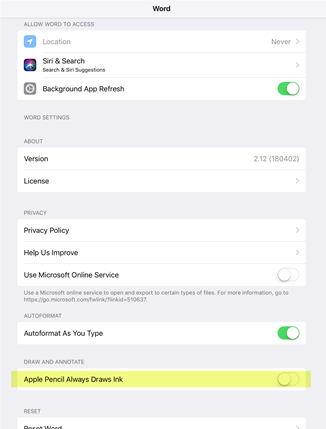
If you have a touch-enabled device and are using a digital pen, by default it starts drawing immediately when the pen hits the document canvas.
To turn off drawing mode after you've drawn what you want, press the Esc key. This action puts you back into selection mode.
You can turn off automatic inking on a more systematic level. To make the pen work as a stylus by default and only ink when in “Draw” mode on the Draw tab:
Make the pen work as a stylus by default
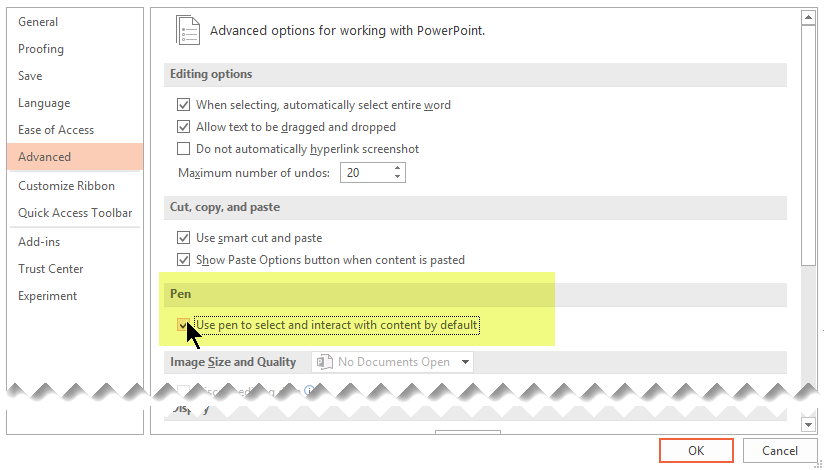
In your Microsoft 365 app, select File > Options.
The Options dialog box opens.Select the Advanced tab. Under the Pen heading, select the Use pen to select and interact with content by default option.
Requirements for the Inking feature
| Applies to: | Word, Excel, PowerPoint Current Channel: Version 1601 or later Semi-Annual Enterprise Channel: Version 1602 or later Find your Office version |
|---|---|
| Operating system: | Windows 10, version 1511 or later Find your Windows version |