
OneDrive saves each AI agent as an .agent file. You can filter the OneDrive file list to find and open these files.
Important
Upgrades are coming in mid-November 2026 to agents in OneDrive. To learn more, see Upgrade agents in OneDrive.
Note
AI agents are available only for work or school accounts with a Microsoft Copilot license.
Filter and find agent files
To quickly find your agents in OneDrive:
Sign in to the OneDrive website with your work or school credentials.
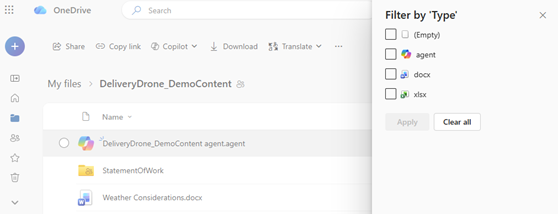
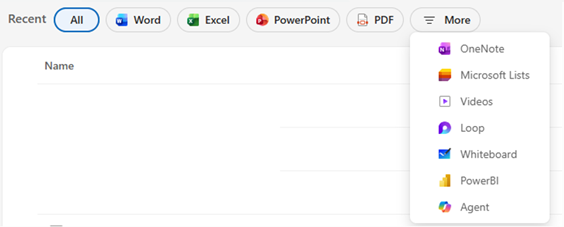
From Home, Shared, or Favorites, select the file type filter.
Select More > Agent.
The file list displays only agent files in the current view.
Find the default agent save location
By default, OneDrive saves an agent in the folder where you create it. If you create an agent from one of these views, OneDrive saves it in My files > Documents > Agents:
- Shared
- Favorites
Tip
You can rename, move, or delete agent files just like other OneDrive files.
Identify an agent file
Agent files have the .agent extension and display the agent icon
 . Open an agent file to ask questions in the full-screen viewer.
Troubleshoot a missing agent file
Search for the agent's name or .agent in the OneDrive search box. If the agent doesn't appear in the results, confirm that you're searching in the account where you created or saved it.
If you created the agent from Shared or Favorites, check My files > Documents > Agents.
See also
Need more help?
Account support. For help with your Microsoft account and subscriptions, visit Account & Billing Help.
Technical support. For technical support, select Contact Microsoft Support below, enter your problem and select Get Help.
Mobile users can contact Support by opening the OneDrive app and gently shaking your device.
Community support. Communities help you ask questions, give feedback, and hear from experts with rich knowledge. Ask the Microsoft Community. Do not disclose personal or sensitive information in public forums.