

What is Quick access?
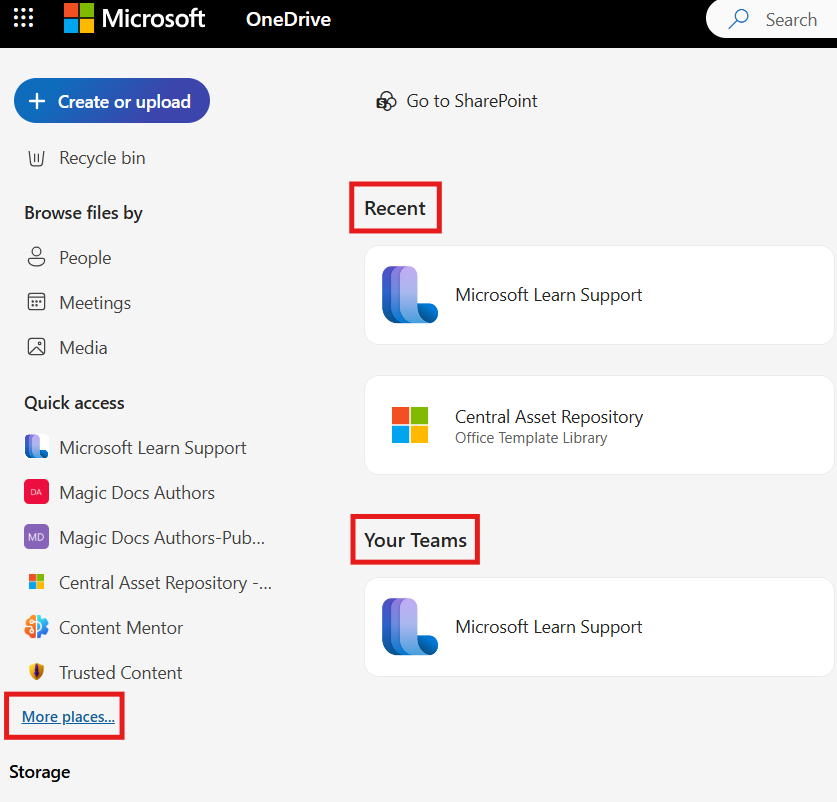
Quick access makes it simple to find your frequently used storage locations, including recently used shared libraries, channels, and folders.
When you select Open, Quick access will appear in the side nav column, listing the document libraries that you own and the shared document libraries that you use, along with a More places... option. Select this to display all of your recently accessed locations under the Recent section. Below the Recent section, the Your Teams section lists all of the teams that you belong to.
Common concerns
My Quick access list is not showing up
Quick access is being rolled out gradually. You will see it as we continue to add audiences. Until then, your Sites tab will remain available to provide access to server locations.
My Quick access list is empty
Quick access will be empty if you have not yet gained access to and visited any shared libraries. After you do so, they will begin to be displayed.
The Teams section is empty
If you don't belong to any team within Microsoft Teams, the Your Teams section will be empty. As you are added to (or create) any teams they will begin to appear here.
My accounts are not all displaying
Quick access is tied to your OneDrive for Business accounts. If you are not signed in to an account – or all of your connected accounts – you will not see all Quick access items. To resolve authentication issues:
Open the Office app where you're seeing the problem (for example, Word, Excel, or PowerPoint).
Select File in the top-left corner.
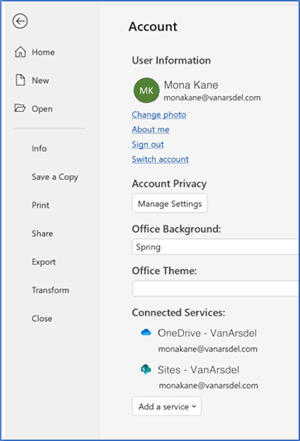
In the left-hand menu, select Account.
You should now see the Account section, similar to the screenshot.
Sign in again as needed.