
If you are unable to save files created with Office Lens to your OneDrive, try using the OneDrive app's Scan feature instead. Scan is available in OneDrive for iOS and OneDrive for Android mobile apps.
How to use OneDrive Scan
The Scan feature lets you take pictures of documents, presentations, or a whiteboard, and save the scanned image as a PDF.
In the OneDrive app, tap Add
 at the top of the screen.
Then tap Scan.
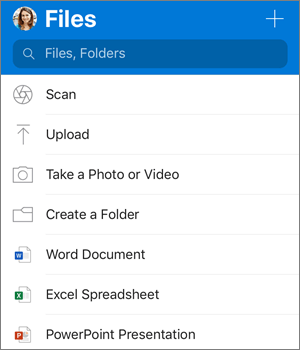
- If you choose Scan or Take a photo or video, your device's camera app opens. You might be asked if you want OneDrive to access your camera - tap OK to allow your pictures to be saved in OneDrive.
Then Save the file to the desired location.
Learn more
Need more help?
Account support. For help with your Microsoft account and subscriptions, visit Account & Billing Help.
Technical support. For technical support, select Contact Microsoft Support below, enter your problem and select Get Help.
Mobile users can contact Support by opening the OneDrive app and gently shaking your device.
Community support. Communities help you ask questions, give feedback, and hear from experts with rich knowledge. Ask the Microsoft Community. Do not disclose personal or sensitive information in public forums.