
Important
Support for Office 2016 and Office 2019 ended on October 14, 2025. Upgrade to Microsoft 365 to work anywhere from any device and continue to receive support.
When you create a new OneNote 2016 notebook on OneDrive it's in the cloud. This means you can open it from your computer, smart phone, or any web-connected device and it will always be up to date. And, if you'd like, you can share it with others.
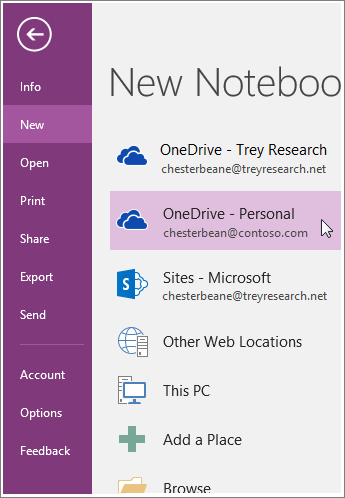
In OneNote, choose File > New.
If you already see OneDrive as an option, skip to step 5.
Choose Add a Place > OneDrive.
Enter your OneDrive or Microsoft Account username (for example, a Hotmail, Live, or Outlook.com email address).
Note
If you're creating a notebook at work, you can sign in using your organization's account and create your notebook on OneDrive for Business.
Select OneDrive - Personal, give your notebook a name, and then choose Create Notebook.
If you've already created a notebook on your computer, you can move it to OneDrive. After your notebook is on OneDrive you can share it with others.