
In Outlook, images can be added to a contact form or to an Electronic Business Card. This helps you put a face to a name or a quickly match a logo to a company contact.
If both the sender and the recipient use Outlook, a contact picture appears in e-mail messages when the sender includes a contact photo. The picture appears in the message header of the open message and in the header of the message.
To add, remove, or change a picture for a contact, switch to your Contacts folder and edit the contact.
For steps to change your own Outlook photo, see Change my photo.
Add a photo
Note
Photos you add are only visible on your computer.
On the Navigation Bar, click People.

Find the contact you want to edit. You can type the contact's name in the Search box at the top of your contacts folder to filter your contacts.

Double-click to open the contact.
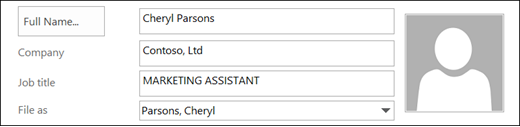
Double-click the contact picture or the placeholder image that's shown for contacts without a picture.
Browse to find a picture for the contact, select the image, then click OK.Tip
Outlook can use .jpg, .png, .gif, .bmp, or .tif file formats.
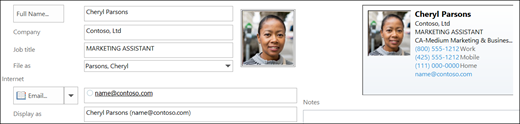
Save and close the contact.
Change a contact photo
On the Navigation Bar, click People.
Find the contact you want to edit. You can type the contact's name in the Search box at the top of your contacts folder to filter your contacts.
Double-click to open the contact.
Right-click the current contact photo.
Select either Change Picture or Remove Picture.
Save and close the contact.