

Microsoft 365 brings your LinkedIn network into the profile card in Outlook, so it's easier to collaborate with the people you work with. You can see LinkedIn information on profile cards across Microsoft 365 apps, such as Outlook, OneDrive for Business, and SharePoint. Some public LinkedIn information, like a person's photo and job title, may show even before you connect your accounts. To see more, connect your LinkedIn account with your Microsoft account.
Select your profile picture or someone else's to open the profile card.
Select the LinkedIn tab or icon on the profile card.
You'll only see this if your organization allows you to connect your accounts.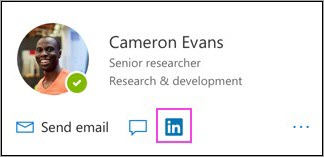
Select Yes, let's go or Continue to LinkedIn.
If prompted, sign in to your LinkedIn account.
Select Accept to connect your LinkedIn account with your Microsoft account.
Choose whether your Microsoft account can share data with LinkedIn: select Accept to allow it, or Not Now if you prefer not to.
If prompted, select Got it or OK to finish. Your accounts are now connected.
*You need to select Accept in step 5 to see detailed LinkedIn information on profile cards in Microsoft apps and services. Step 6 is optional.
Learn more about profile cards in Microsoft 365 and LinkedIn in Microsoft apps and services.