
You can ask another person in your organization to become the organizer of a meeting or recurring meeting series. The new organizer must accept the request before the organizer changes.
Applies to: New Outlook, Teams M365 Calendar and Outlook on the web. Classic Outlook for Windows isn't supported.
Before you begin
The Change organizer option appears when the following requirements apply:
The meeting or instance must be in the future. For meeting series, transferring the meeting only applies to future instances.
The meeting must be a non-online meeting. Support for Change Organizer for online meetings is coming soon.
You must be the current organizer, or a delegate who can edit the organizer's meeting.
You can only select one new organizer and they must be within the same organization or tenant. The selected organizer must be supported by your organization's Exchange Online configuration.
The meeting must use a work or school account. Personal Outlook.com accounts aren't supported.
The meeting must be stored on the organizer's primary calendar. A delegate can make the request from another user's shared primary calendar when the delegate has edit permission.
The meeting can't be a draft, canceled meeting, or meeting on a group calendar.
Meetings stored in Group or Shared mailboxes can't be transferred, instead provide the new organizer with access to the Group or Shared mailbox.
Encrypted meetings currently can't be transferred to a new organizer.
A single meeting can't be transferred after it has started.
A recurring series in the past cannot be transferred. The new organizer must create a new series instead.
Note
The person you select doesn't need to be an attendee of the meeting. The previous organizer will not be a part of the attendees once transferred.
Ask someone to become the organizer of a single meeting or instance
In Outlook, open Calendar.
Right-click the meeting that you organize, and then select Change organizer.
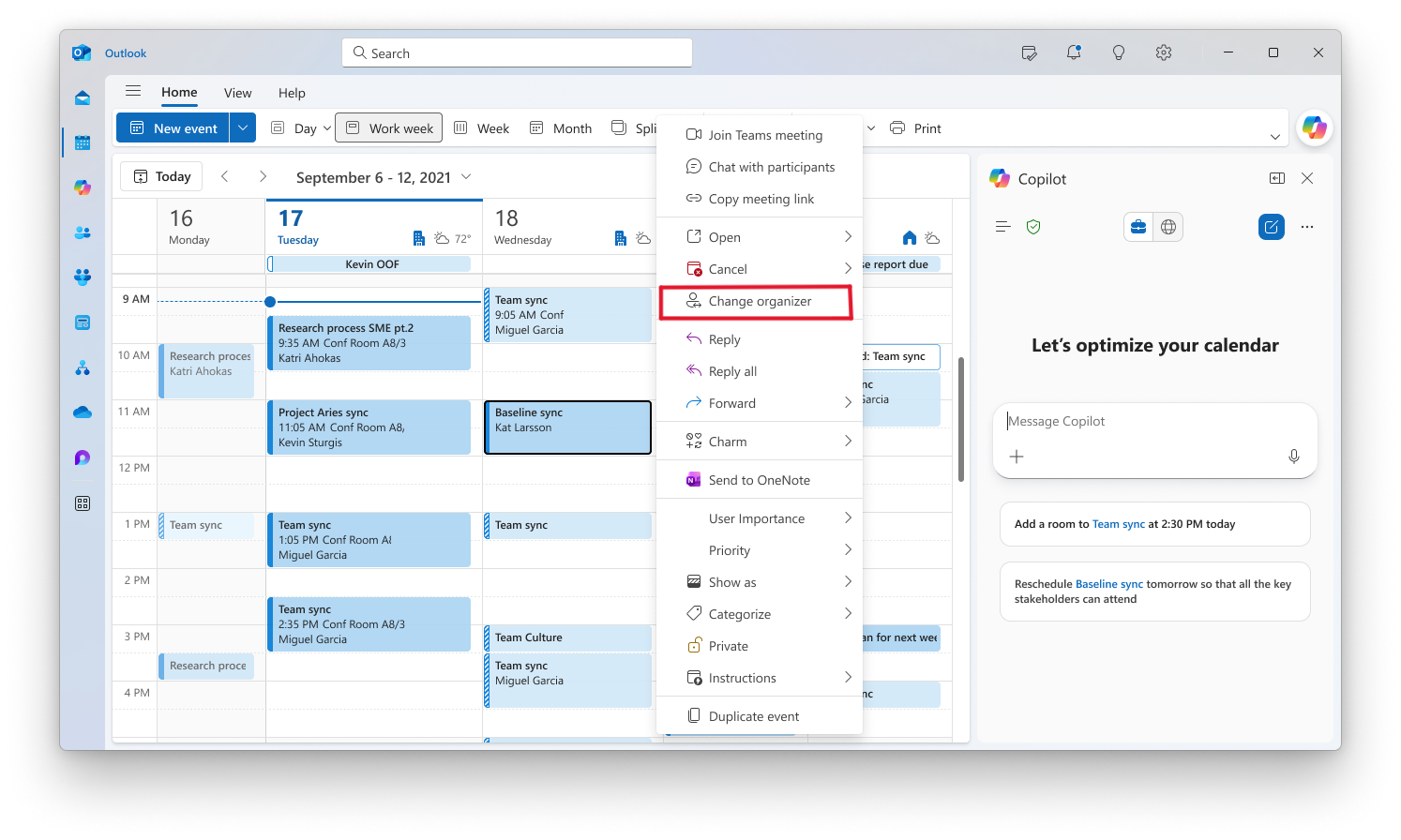
You can also open the meeting, select More options, and then select Change organizer.
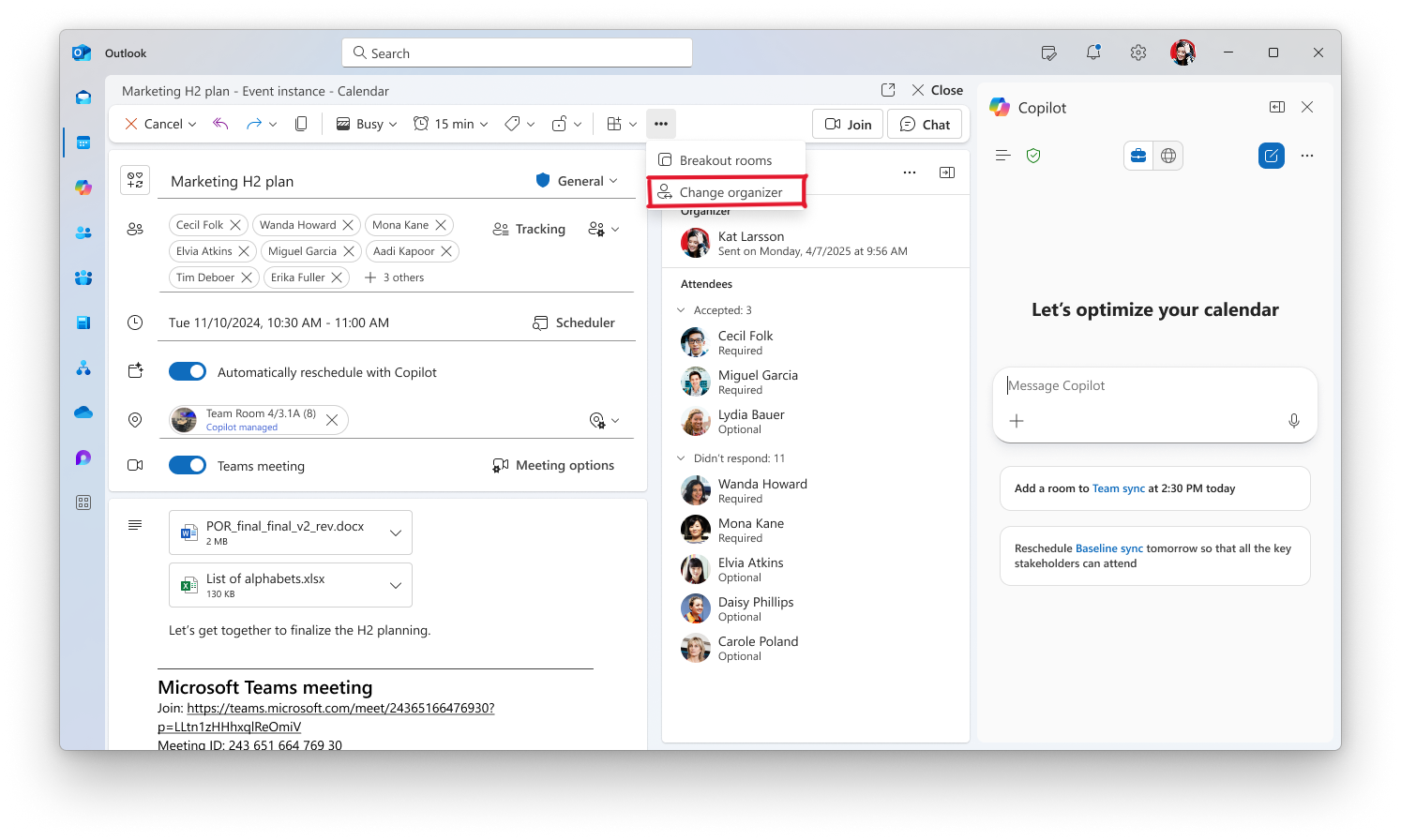
Enter the name or email address of the person you want to become the organizer.
Optionally, add a message for the new organizer.
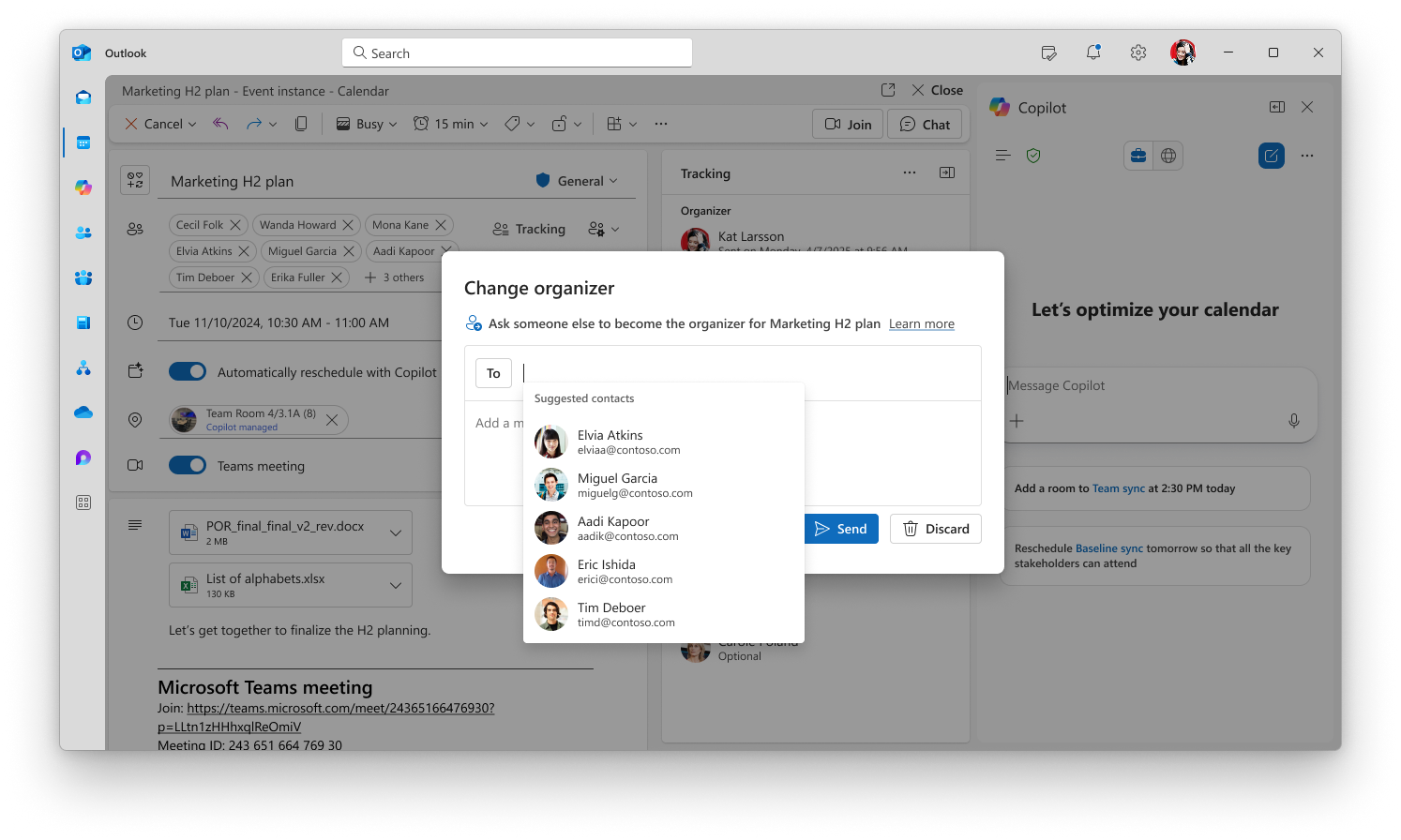
Select Send.
Outlook shows Request sent. The meeting remains under the current organizer until the selected person accepts. The previous organizer will not be added as an attendee automatically.
Ask someone to become the organizer of a meeting series
To transfer a recurring meeting series to a new organizer, you must open the meeting first.
In Outlook, open Calendar.
Open the recurring meeting that you organize.
Select More options, and then select Change organizer.
Enter the name or email address of the person you want to become the organizer.
Optionally, add a message for the new organizer.
Select Send.
Outlook shows Request sent. The meeting remains under the current organizer until the selected person accepts. The previous organizer will not be added as an attendee automatically.
Important
For a recurring series, the organizer change affects only future meeting instances. If the requested instances happen to be in the past, the new effective date will be when the new organizer accepts the request. Earlier instances remain on the original organizer's calendar.
Accept or decline an organizer request
If someone asks you to become the organizer, you receive a request message in an email. You can respond from the request email or if you are an existing attendee, you can open the meeting in Outlook and respond there. A banner at the top of the meeting says that the current organizer has asked you to become the organizer.
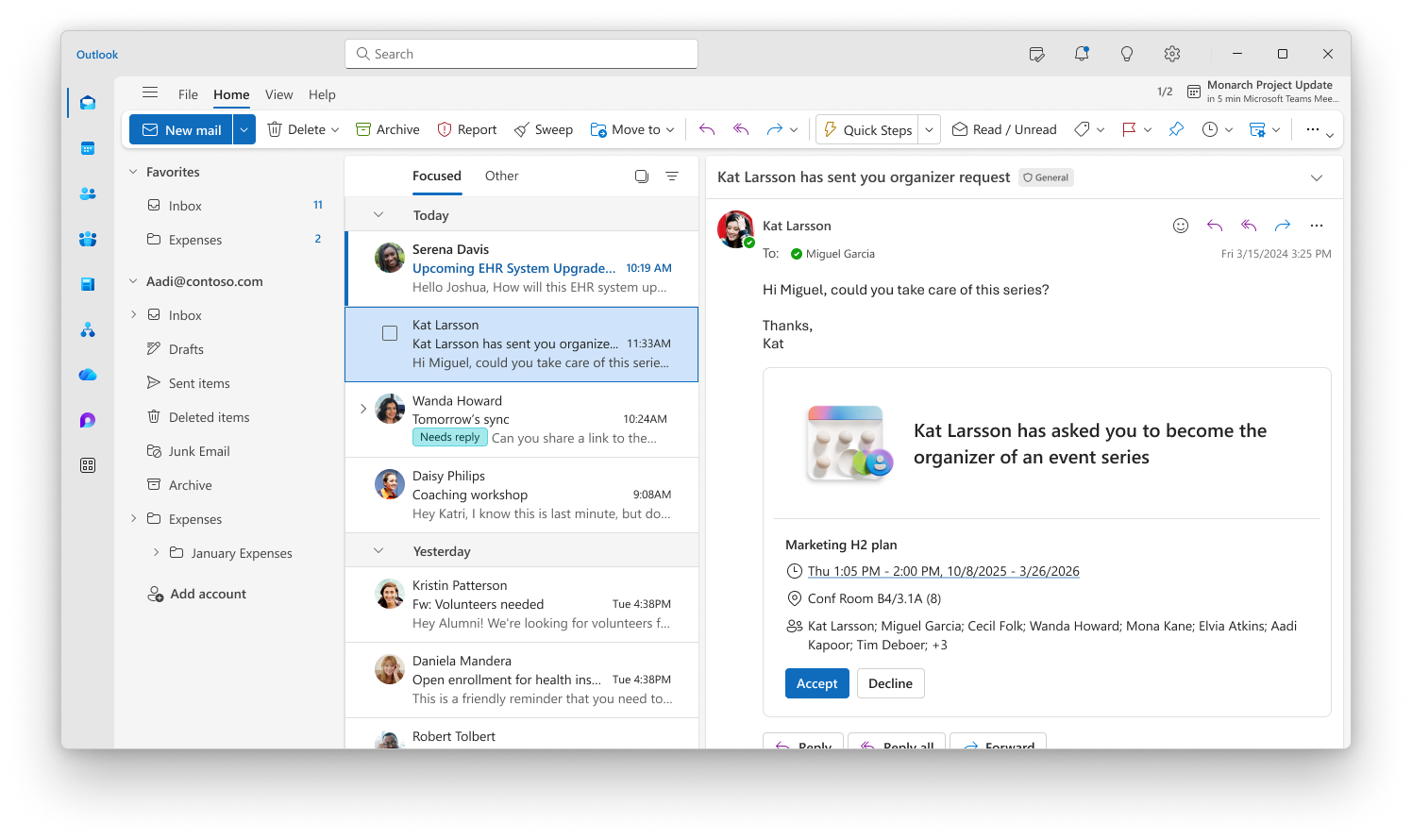
In the request email or the meeting banner, select Accept to become the organizer, or select Decline to reject the request.
Wait while Outlook processes your response.
If you accept, Outlook updates the meeting or series to show you as the organizer. If you decline, the current organizer keeps ownership.
Cancel a pending request
The current organizer, or a delegate with edit permission, can cancel the request before the selected person accepts it in two ways:
- Open the meeting, select More options and then select Cancel change organizer. In the confirmation dialog, select Cancel request.
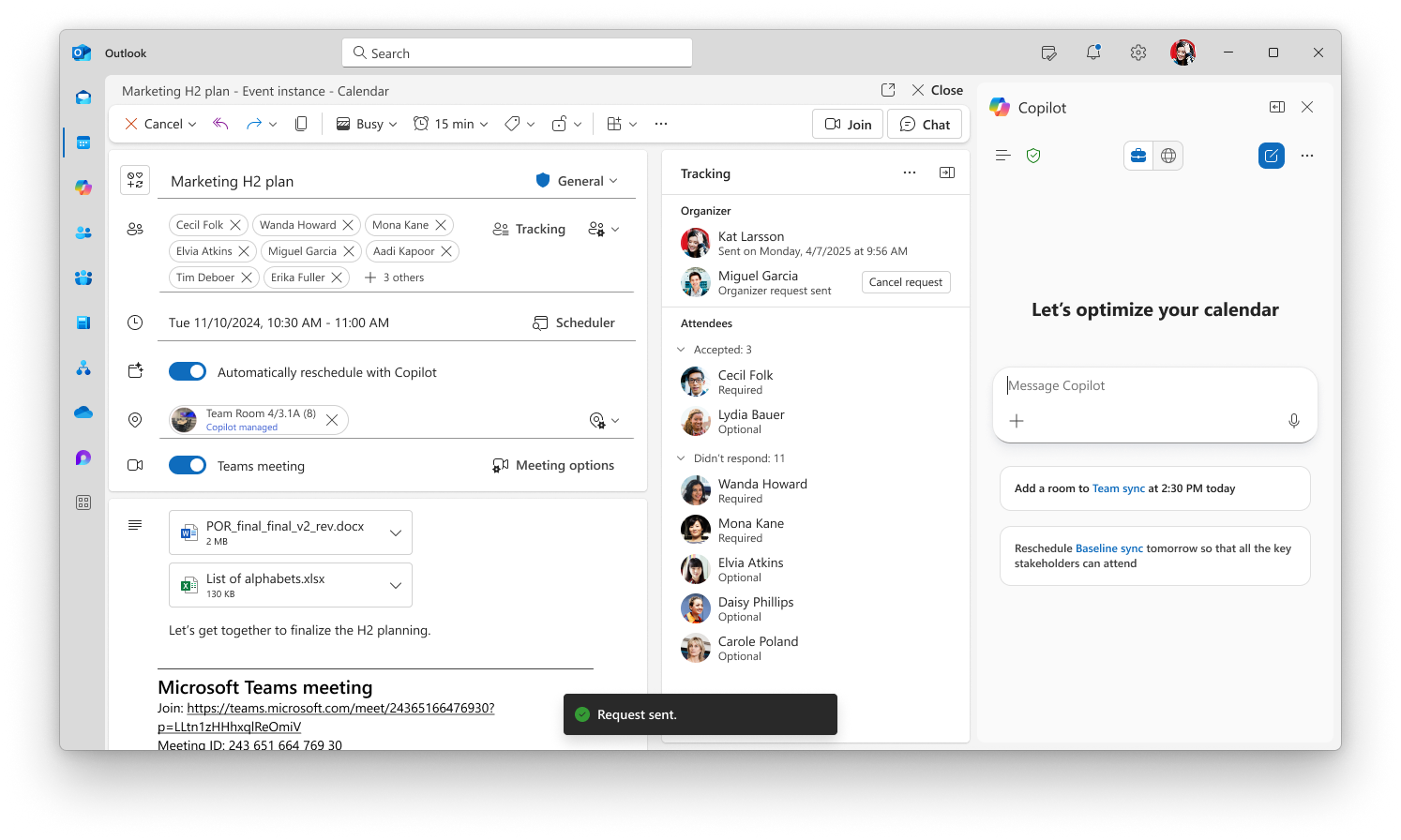
- Right-click the meeting you organize, then select Cancel change organizer.
Outlook shows Organizer request canceled, and the current organizer keeps ownership.
What happens after the organizer changes
| People or content | What happens |
|---|---|
| New organizer | Future meeting instances move to the new organizer's calendar, where the new organizer can manage them. |
| Previous organizer | The previous organizer isn't automatically added as an attendee to the transferred meeting. The new organizer can invite them. |
| Attendees in the same Exchange Online organization | Their calendars update silently. They don't need to respond again, and local settings such as Reminder, Category, Show As, and Private are preserved. |
| External or on-premises attendees | They receive a message ending the meeting from the previous organizer and a new invitation from the new organizer. They must respond again. |
| Earlier instances in a recurring series | Instances before the effective change date remain with the previous organizer. |
| Meeting has sensitivity label | Once the transfer succeeds, the label is retained. |
Limitations
Online meetings (Teams meetings)
Currently you cannot change organizer for online meetings. The support for online and Teams meeting will come soon.
Attachments and links
The new organizer might not have access to OneDrive attachments or links that were added by the previous organizer unless it has been shared with them before. Remove and add a copy that the new organizer can access. Sensitivity labels are preserved after the transfer of all attachments. For guidance on how to share attachments and links, see best practices.
Calendars and series
Meetings on group calendars aren't supported.
Meetings stored in Group or Shared mailboxes aren't supported.
After a recurring meeting is transferred, the portion of the series that remains on the previous organizer's calendar can't be transferred again.
Future instances on the new organizer's calendar can be transferred to another organizer.
Frequently Asked Questions
I don't see Change organizer
The feature might not be enabled for your organization, you might be using classic Outlook for Windows, or the meeting might not meet the requirements. Contact your organization's support team if you expect the option to be available.
Outlook says the new organizer must be in my organization
Select a person whose work or school account is in the same organization or tenant as the current organizer. The selected organizer must be supported by your organization's Exchange Online configuration.
If I decline a request accidently or by choice, can I go back and accept later?
No, the previous organizer will need to send another Change Organizer request.
What happens to Attachments and message body? Are they preserved?
Yes, they are both preserved. The attachments are preserved with their sensitivity labels. The new organizer might not have access to OneDrive attachments or links that were added by the previous organizer unless it has been shared with them before. Remove and add a copy that the new organizer can access. For guidance on how to share attachments and links, see best practices.