

When you send an email, you might want to look up and select an email address from a specific group of contacts, like a group of coworkers, relatives, or a club. To make this easier, you can create personal address books using the names in your classic Outlook contact folders.
To do this, create a folder under Contacts, and then make that folder an address book.
Select the People tab from the side panel.
On the Folder Pane, under My Contacts, right-click the Contacts folder, and then select New Folder.
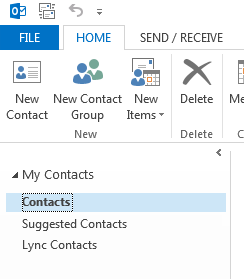
In the Create New Folder dialog box, name the folder, select where to place it, and then select OK. The new folder should be created by default in the Contacts folder.
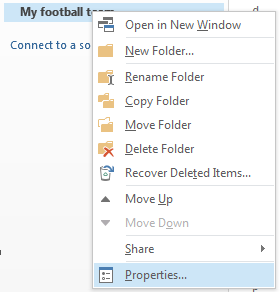
To make sure your folder is available as an address book, right-click the new folder, and then select Properties.
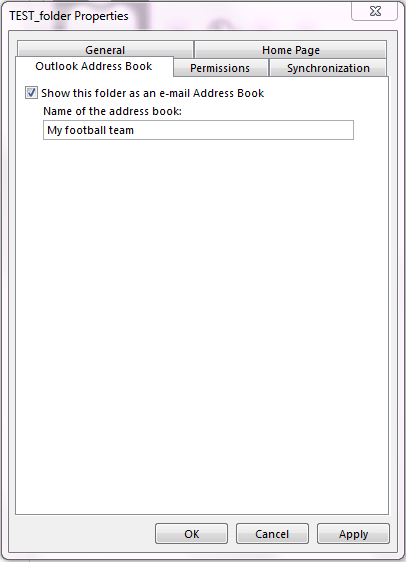
Select the Outlook Address Book tab, and make sure that the check box for Show this folder as an e-mail Address Book is selected.
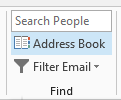
Confirm that the new contacts folder was added as an address book. From your Inbox, select the Home tab > Address Book.
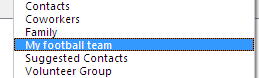
In the Address Book dialog box, verify that the address book you just created appears in the Address Book list.
Add contacts to your address book
Now that you have your personal address book or custom contacts group created, you can add contacts to it.