
Use this Outlook newsletter template as is or customize it to suit your needs and tastes.
Change the font
To change the font in the entire newsletter, select Ctrl-A to select all of the elements on the template. Select Format Text, then select a font from the font drop-down menu.
To change individual text, drag the cursor to select the text you want to change. Select Format Text, then select a font from the font drop-down menu.
Edit text
To edit existing text, select the text you want to change, then type over the text with new copy.
To paste text from another document,
- Copy the text from the other document.
- In the newsletter, drag the cursor to select the text you want to change.
- Select Format Text > then click the down arrow under Paste > then select Keep Text Only.
Add and edit hyperlinks
To add a new hyperlink,
- Drag the cursor to select the text or image you want to hyperlink. Do not select space before or after the text you want to hyperlink.
- Select Insert > Link or right-click > Link.
- Type or paste the URL in the Address field, then click OK.
To edit an existing hyperlink,
- Drag the cursor to select the hyperlink you want to change. Do not select space before or after the hyperlink text.
- Select Insert > Link or right-click > Edit Hyperlink.
- To change the hyperlink, make changes to the URL in the Address field, then click OK.
- To change the hyperlink text, change the copy in the Text to display field, then click OK.
Insert a logo
- Size two versions of your logo: the header logo should not exceed 400 pixels, and the footer logo should not exceed 100 pixels.
- Save the logos on your desktop or in a file where you can easily access them.
- Click on the placeholder logo in the template and select Insert > Pictures.
- Locate your logo where you saved it, then select Insert.
- To resize the logo, hold the Shift key down, then place the cursor on a corner of the image and drag to resize it.
Delete a section
- Click anywhere in the copy of the section you want to delete.
- When the multi-directional arrow appears at the top left corner of the section, click on it.
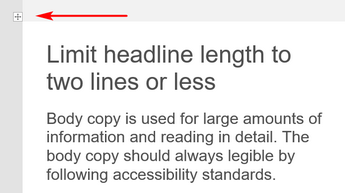
- Then select Delete > Delete Rows or Delete Table.
Add section rows
- Click anywhere in the copy area of the left column in the row you want to duplicate.
- When the multi-directional arrow appears at the top left corner of the section, click on it to select the section. If the row has 2 or more columns, hold the Shift key down and select the Right arrow key to select the entire row.
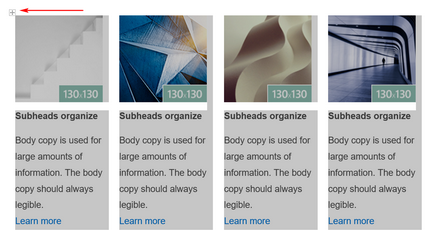
- Once the entire row has been selected, select Message > Copy or Ctrl-C.
- Select the Enter key to create a new row, then select Paste or Ctrl-V.
Edit images
- Size the images you want to use according to the dimensions specified in the template. Save the images on your desktop or in a file where you can easily access them.
- Click on an image in the template and select Insert > Pictures.
- Locate the image where you saved it, then select Insert.