

If you want your Outlook contacts in Google Gmail, you can export them from Outlook, and then import them into Google Gmail.
Note
You can only export the contacts in your contact list, not the contacts in your address book, which also includes people from your company’s Global Address List (GAL) and other kinds of address lists, such as Lightweight Directory Access Protocol (LDAP) internet directories.
Export contacts from Outlook
In Outlook, select File > Options > Advanced.
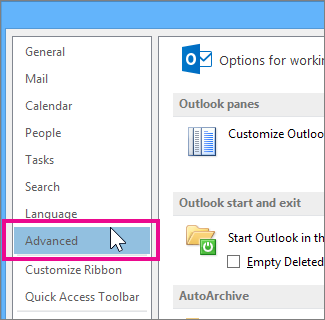
Under Export, select Export.

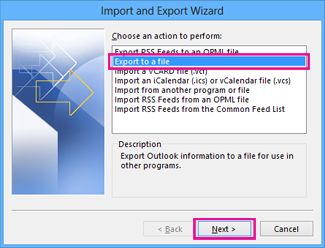
On the first page of the Import and Export Wizard, select Export to a file, and then select Next.
Select Comma Separated Values, and then select Next.
In the folder list, select the contacts folder you want to export, and then select Next.

Choose a location on your computer to temporarily save the file, either use the default name or type a custom name for the exported file, and then select Next.
Note
You can delete this file after your contacts are imported into Google Gmail.
If you want to change how contact information is saved in the file, select Map Custom Fields.
Note
If the Map Custom Fields button isn’t available, under The following actions will be performed, make sure the Import box is checked.
Select Finish.
Import your contacts into Google Gmail
For detailed steps, go to Import your contacts into Google Contacts.