

Important
Support for legacy Outlook for Mac will end in October 2026. Continued support for legacy Outlook for Mac will depend on your Microsoft 365, Office, or Outlook license. For more information, go to End of support for legacy Outlook for Mac.
Do you often include multiple translations in a single email message? If so, a great time saver is to have Outlook for Mac detect and spell check those translations for you automatically.
It's a two-step process. First, select the languages you use most often. Next, compose your message.
Choose the preferred language
- On the Mac, select System Setting
 , then General > Language & Region.
 - Under Preferred languages, select the plus + button.
- Select the language you plan to use, then select Add.
- Select your primary language.
- Repeat for each language.
Compose your email message in Outlook for Mac
If Outlook is open, exit and restart it so the language additions can take effect.
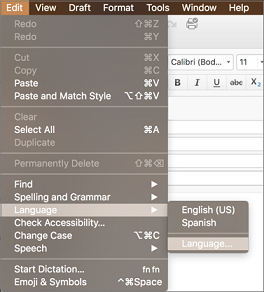
Open a new email message, place the cursor in the body of the message, then select the Edit menu.
Select Spelling and Grammar, then Spelling & Typing again.
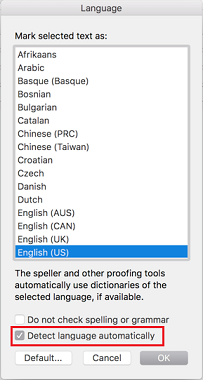
Select Manage Languages, add a preferred language by clicking on + symbol.
Select the check box for Allow Editor to automatically detect and add new proofing languages based on your writing then select Save.
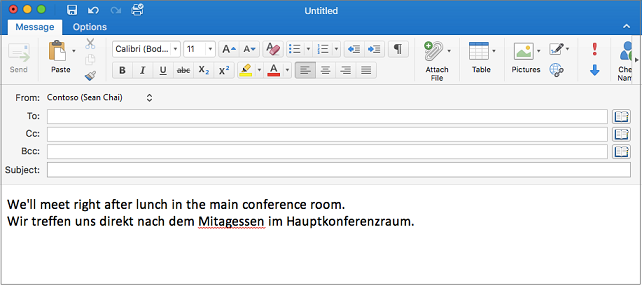
Type the text of your message in the language of your choice. Outlook will automatically spell check as you type.
Tip
Language detection works on full sentences only. Be sure to end your sentences with punctuation to trigger language detection.
Select the misspelled word to choose from a list of suggestions.
See Also
Check spelling and grammar in a different language
Change the language Office uses in its menus and proofing tools