
Use the Snooze feature in Outlook for Mac to temporarily remove an email from your Inbox and have it return at a time that works best for you.
Note
- This feature is currently not available in Legacy Outlook.
- This feature is only supported for Microsoft 365 and Exchange Online accounts. It isn't available for Exchange Server (on premises) accounts or for IMAP and POP accounts, including Gmail, Yahoo, and iCloud accounts configured using direct sync.
Snooze an email
Select a message and choose the Snooze option in the toolbar or Control-click an email and select Snooze.

Pick a date and time or select Choose a date.
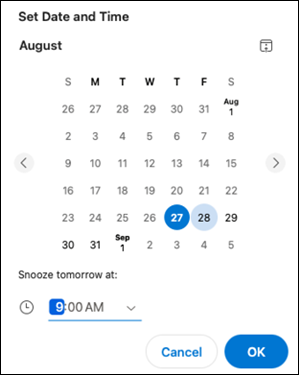
After choosing a date and time, select OK.
Unsnooze an email
Select a message in the Snooze folder and choose the Snooze option in the toolbar.
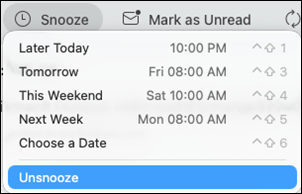
Select Unsnooze.
Note
If you don't have the Snooze button, you can customize your toolbar to add it. For more information, go to Customize your toolbar in Outlook for Mac.