Share a file in a message
- Select New message.
- On the toolbar, select Attach > Browse cloud locations.
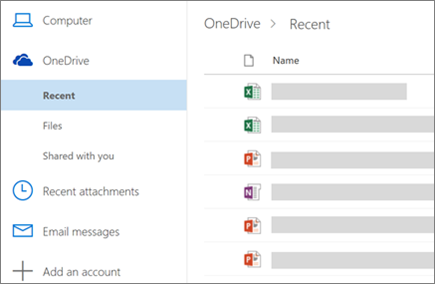
- Choose the file you want to attach from the different options:
- Computer
- OneDrive
- Recent attachments
- Email messages
- Select if you want to:
- Share as a OneDrive link
- Attach as a copy
Use @mentions to get someone's attention
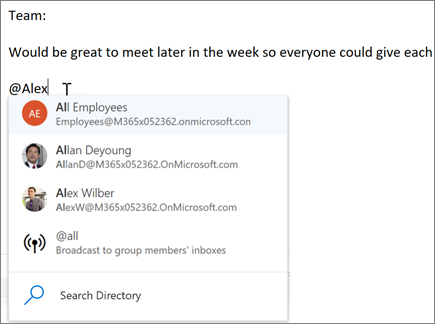
In the body of the email message or calendar invitation:
- Type the @ symbol and the first few letters of a contact's first or last name.
- Choose a contact from the list.
This adds the contact to the To line of the email message or meeting invitation.
Note
@mentions are only available for Exchange Server 2016, Exchange Online, or Outlook.com users.