In addition to using the Reading Pane to help you quickly scan your messages, you can also preview the first few lines of messages in your message list, and you can break up long messages by splitting the message window.
Turn off or move the Reading Pane in classic Outlook
The Reading Pane is turned on by default. Do one of the following:
- To turn off the Reading Pane:On the View tab, under Layout, select Reading Pane, and then select Off.
- To turn on or move the Reading Pane:On the View tab, under Layout, select Reading Pane, and then select Right or Bottom.
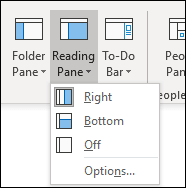
Selecting Off closes the Reading Pane only for the folder you're in. To turn off the Reading Pane quickly for multiple folders, on the View tab, select Change View > Apply Current View to Other Mail Folders, and then choose folders in the Apply View dialog box.
Mark messages as read after previewing in the Reading Pane in classic Outlook
- On the View tab, under Layout, select Reading Pane, and then select Options.
- To turn this feature on, select the check box at Mark items as read when viewed in the Reading Pane, and then enter a number in the Wait n seconds before marking item as read box.
To turn off this feature, clear the check box at Mark items as read when viewed in the Reading Pane.

Always preview messages when switching folders in classic Outlook
Turning on 'always preview messages' will display the most recent message in the reading pane when navigating to another folder.
With this feature turned off, the first time navigating to a folder after launching Outlook you will see 'Select an item to Read' in the navigation pane.
Always preview messages is turned off by default, but you can turn it on or off at any time.
- On the View tab, under Layout, select Reading Pane, and then select Options.
- Select or clear the Always preview messages check box.

Move through messages by pressing the space bar (single key reading) in classic Outlook
Single key reading using the space bar lets you move quickly through your messages in the Reading Pane. Each time that you press the space bar, the Reading Pane content scrolls down one page. At the end of the item, the next unread item in your message list appears.
Single key reading is turned on by default, but you can turn it on or off at any time.
- On the View tab, under Layout, select Reading Pane, and then select Options.
- Select or clear the Single key reading using space bar check box.
Make previewed items larger or smaller in the Reading Pane in classic Outlook
You can set a permanent default zoom level. Here are the detailed steps:
- In your inbox, double-click a message to open it in a standalone message window.
- Near the right end of the ribbon, select
 Zoom.
Zoom.
(If you don't see Zoom, select the "more commands" ellipsis
 at the right end, then select Zoom.)
- In the dialog, set the percentage you want.
- Select Remember my preference, then select OK.
There are also two ways to temporarily increase or decrease the zoom level in the Microsoft Outlook Reading Pane. Do one of the following:
- Use the Zoom control at the bottom of the Outlook window.

- If you're using a mouse with a wheel control, click in the Reading Pane, press CTRL, and roll the scroll wheel. Rolling the wheel away from you makes the content larger, and rolling the wheel toward you makes the content smaller.
Note
The zoom affects only the current item in the Reading Pane. When you select another item or folder, the Reading Pane returns to the default zoom of 100 percent.
Display a message preview in the message list in classic Outlook
For a way to quickly scan your Inbox, try Message Preview, where you can choose to display between one and three lines of each message in the message list, along with the sender's name and the subject line.
On the View tab, select Message Preview, and then choose an option.

Split the message window to break up a long message in classic Outlook
In a message that you're reading or composing, you can split the window horizontally into two panes. This enables you to scroll each pane separately so that you can view two sections of a message that you otherwise couldn't see on the screen at the same time.
- Open the message in its own window.
- Press Ctrl+Alt+S, and then click where you want the horizontal split.
- Drag the split bar to where you want it. You can scroll the contents in one pane independent of the other pane.
To return to a single message pane view, drag the split bar to the top or bottom of the window. You can also press Ctrl+Alt+S again to turn off the split view.

