
Copilot in Planner helps you plan and manage your projects more efficiently and effectively. Whether you're a beginner or an expert in project management, Copilot supports you along the way and helps you achieve your goals.
Get started
All Copilot in Planner features are easily accessed through the Planner app in Microsoft Teams.
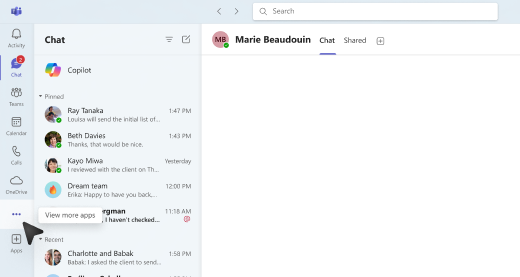
In the Teams app, select View more apps ... on the left-side app menu.
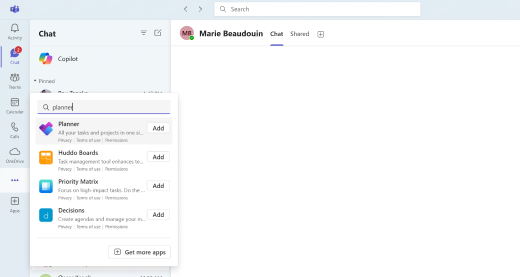
In the search bar, search for Planner and select the More Planner options (...). Then, select Pin.
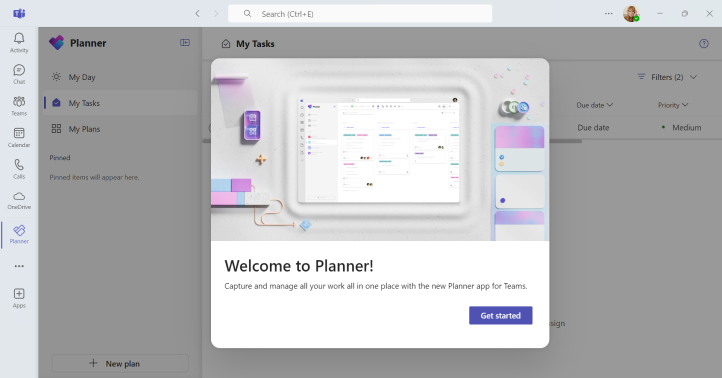
In Teams, on the left-side menu, select the Planner app.
- If you're creating a new plan, select Premium to access all Copilot features. You can also select an existing plan you've already set up as premium to access all Copilot features.
On the plan's home page, select Copilot
 icon at the bottom-right corner. The Copilot pane opens to the right of the plan.
Use Copilot
There are several ways to use Copilot in Planner:
Choose one of the suggested prompts — Add tasks, Set goals, Plan my day, or Get a status report—at the top of the pane.
Type your own prompt in the compose box.
Tip
Discover more prompts and explore suggested prompts for your projects.