You can add shapes, such as boxes, circles, and arrows, to your documents, email messages, slide shows, and spreadsheets.
To add a shape:
- On the Insert tab, select
 Shapes.
- Select a shape from the gallery, and then click and drag to draw the shape.
After you add one or more shapes, you can add text, bullets, and numbering to them, and you can change their fill, outline, and other effects on the Shape Format or Format tab.
Tip
You can add individual shapes to a chart, or add shapes on top of a SmartArt graphic to customize the chart or the graphic.
Add a shape in Excel, Outlook, Word, or PowerPoint
On the Insert tab, click
Shapes.
Select the shape you want, click in the workspace and drag to draw the shape.
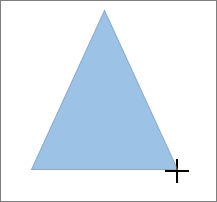
To create a perfect square or circle (or constrain the dimensions of other shapes), press and hold Shift while you drag.
Add a shape in Project
To follow these steps, you need to open or create a report. To do that, on the Report tab, click Recent to open an existing report, or click More Reports to select a report from the list in the Reports dialog box or create a new report.
In the open report, on the Design tab, click Shapes.

Click the shape you want, click anywhere in the workspace, and then drag to place the shape.
To create a perfect square or circle (or constrain the dimensions of other shapes), press and hold Shift while you drag.
Add text to a shape
Insert a shape or select an existing shape, and then enter text.
Right-click the shape and select Add Text or Edit Text, or just start typing.
Note
The text that you add becomes part of the shape — if you rotate or flip the shape, the text rotates or flips also.
To format and align your text, click the Home tab, and then choose options from the Font, Paragraph, or Alignment groups, depending on the program you're using and what kind of formatting you want to apply. (Text formatting options are limited in Project.)
Change from one shape to another shape
Note
These commands aren't available in Project.
- Select the shape to change.
8226; To change multiple shapes, press Ctrl while you select the shapes to change.
- On the Shape Format or Format tab, select
 Edit Shape.
- Select
Change Shape and choose a new shape from the gallery.
Add the same shape multiple times
If you need to add the same shape repeatedly, you can do so quickly by using Lock Drawing Mode.
Note
Instead of adding individual shapes to create a drawing, you might want to Choose a SmartArt graphic. In a SmartArt graphic, the arrangement of the shapes and the font size in those shapes is updated automatically as you add or remove shapes and edit your text.
On the Insert tab, select
Shapes.
Right-click the shape to add, and then select Lock Drawing Mode.
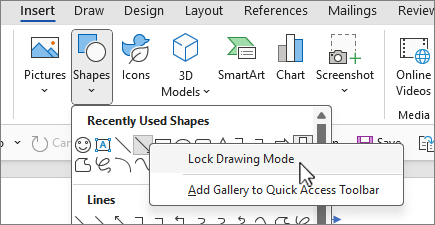
Click anywhere in the workspace, and then drag to draw the shape.
Repeat step 3 to add the shape as many times as you like.
Tip
To create a perfect square or circle (or constrain the dimensions of other shapes), press and hold Shift while you drag.
After you add all the shapes you want, press Esc to turn off Lock Drawing Mode.
Add a bulleted or numbered list to a shape
Note
This feature isn't available in Project.
Select the text in the shape that you want to add bullets or numbering to.
Select the Home tab on the ribbon, and in the Paragraph group, select
 Bullets or
 Numbering.
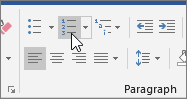
You can find different bullet styles and numbering formats by clicking the down arrow next to
Bullets or
Numbering.
Add a Quick Style to a shape
Quick Styles let you apply a style to your shape with one click. You'll find the styles in the Quick Style gallery. When you hover over a Quick Style thumbnail, you can see how the style affects your shape.
Click the shape you want to change.
Select the Shape Format or Format tab, and in the Shape Styles group, select the Quick Style you want to use.
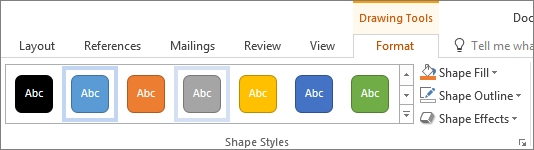
To see more Quick Styles, select
 Quick Styles or
More.
Quick Styles or
More.

Change the color of a shape
To learn how to change fill color, border color, or text color, see Change the colors in a text box or shape.
Delete a shape
Select the shape that you want to delete, and then press Delete. To delete multiple shapes, press Ctrl while you select the shapes that you want to delete, and then press Delete.
See Also
Draw or delete a line, connector, or freeform shape
Rotate a text box, shape, WordArt, or picture
Change the colors in a text box or shape
Draw a decorative line in Word or Outlook
Choose a SmartArt graphic
Create a chart from start to finish
Add clip art to a file
Draw and sketch notes on a page
After adding a shape to a document, you can modify it by adding connector lines, changing the style, adding a mirror image, changing the color, and applying a variety of other effects, such as shadows, glow, and 3-D.
Add a shape
On the Insert tab, select Shapes.

Select the shape you want, click anywhere in the workspace, and then drag to place the shape.
Add text to a shape
Right-click the shape and click Add Text or Edit Text, or just click inside the shape and start typing .
Note
The text that you add becomes part of the shape — if you rotate or flip the shape, the text rotates or flips also.
To format and align your text, click the Home tab, and then choose the available formatting options. For example, you can change font color, styles, sizes, change alignment or indentation, change the text orientation, to name a few.
Change from one shape to another shape
- Click the shape you want to change.
To change multiple shapes, press
 while you click the shapes you want to change.
- On the Shape Format tab, click
 , point to Change Shape, and click the new that you want.
Add the same shape multiple times
- Select the shape you want to copy.
- Press the option key and drag the shape anywhere you want. Release the mouse, and a copy of the shape is created. You can drag and release the shape as many times as necessary.
Add a bulleted or numbered list to a shape
Select the text in the shape that you want to add bullets or numbering to.
On the Home tab, click the arrow next to Bullets or Numbering.
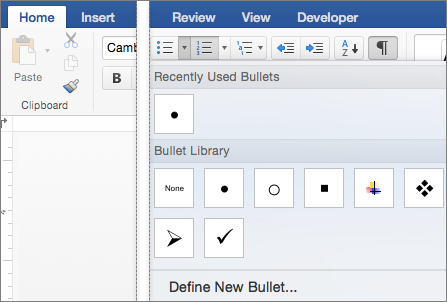
Press Enter every time you want a new bullet or number, or press Enter twice to end the list.
Change the style of a shape
Click the shape you want to change.
Select the Shape Format tab, and in the style gallery, choose the style you want.
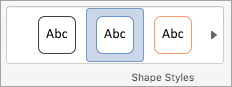
To see more styles, select
 below the style gallery.
Change the color of a shape
Click the shape you want to change.
Click the Shape Format tab, and select
 Shape Fill.
Do one of the following:
- To use a different fill color, under Theme Colors or Standard Colors, select the color that you want to use.
- To remove the color from the selected chart element, select No Fill.
- To use a fill color that is not available under Theme Colors or Standard Colors, click More Fill Colors. In the Colors dialog box, use the available options to pick a color, and then select OK.
- To fill the shape with a picture, select Picture. In the Insert Picture dialog box, choose the picture that you want to use, and then select Insert.
- To use a gradient effect for the selected fill color, select Gradient, and then choose the gradient style that you want to use.
For additional gradient styles, select More Gradients, and then in the Format Chart Area pane, under Fill, choose the gradient options that you want to use.
- To use a texture fill, select Texture, and then choose the texture that you want to use.
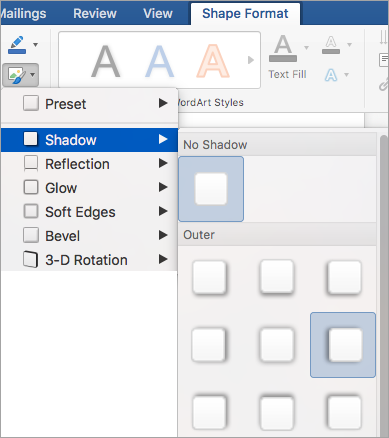
Add a reflection, glow, shadow, 3-D, or other effect
- Select your shape, and then choose the Shape Format tab.
- In the Shape Styles group, select Shape Effects, point to an effect category, and choose the effect that you want.
Change the transparency of a shape
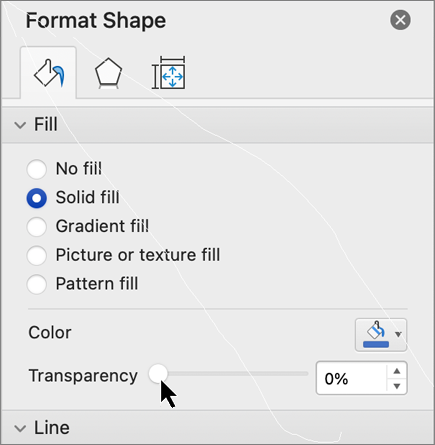
- On the Shape Format tab, select
 Format Pane.
- In the Format Shape pane, select the Fill & Line tab, and then choose either Fill or Line.
- Drag the Transparency slider to achieve the effect you want.
Delete a shape
Select the shape that you want to delete, and then press Delete. To delete multiple shapes, press Command while you select the shapes that you want to delete, and then press Delete.
See also
Change the size of an object
Crop a picture
Move, rotate, or group a picture, text box, or other object
Align objects in Word for Mac
Group or ungroup objects
You can add shapes, such as boxes, circles, and arrows, to your workbooks and presentations. (Word for the web doesn't support shapes.) To add a shape, select Insert on the ribbon, select Shapes, and then choose a shape.
After you add a shape, you can move it and resize it; add text, bullets, or numbering; and you can change the fill color or outline.
Add a shape
On the Insert tab, select Shapes.

Select the shape you want from the drop-down gallery.
A default-sized shape is immediately inserted in the middle of the visible page.
Select a sizing handle on the perimeter of the shape and drag inward or outward to change the size of the shape.
To create a perfect square or circle (or constrain the dimensions of other shapes), press and hold Shift while you drag.
To move the shape, point the mouse at it until the pointer turns into a four-headed arrow. Then click and drag to move the shape where you want it.
When a shape is selected in your document, a Shape tab appears on the toolbar ribbon. It has buttons for things you can do with the shape such as adding a fill color or outline, or choosing a predefined shape style.
Note
If you have the Simplified Ribbon turned off, the tab name in step #4 is Format. For more information on the Simplified Ribbon see The new look of Microsoft 365.
Add text to a shape in PowerPoint for the web
Insert a shape, or select an existing shape, and then enter text, as follows:
Right-click the shape and select Edit Text.
A blinking cursor appears in the center of the shape.
Type the text you want to add to the shape.
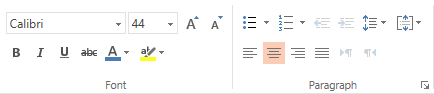
To format and align your text, select the Home tab, and then choose options from the Font, Paragraph, or Alignment groups.
Change a shape by using a predefined Quick Style
Quick styles let you apply a style to your shape with one click. You'll find the styles in the Shape gallery.
Select the shape you want to change.
On the Shape tab, open the Shape Styles gallery and select the quick style you want to use.
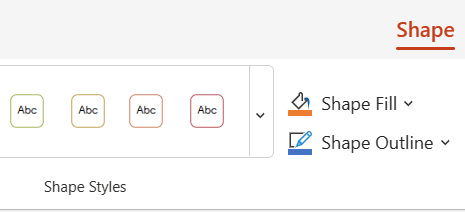
Select the down arrow on the end of the gallery to open it and see the complete list of options:

You can pause the mouse pointer over an option in the gallery to see a short description of it.
Change the color of a shape
- Select the shape you want to change.
- On the Shape tab, select the down arrow next to Fill to open the gallery of fill colors.
- Select a color.
- To make the shape transparent, select No Fill at the bottom of the color gallery.
Change the outline of a shape
- Select the shape you want to change.
- On the Shape tab, select the down arrow next to Outline to open the gallery of outline colors.
- Select a color.
- At the bottom of the gallery there are also options for the thickness (Weight) of the outline, and whether the outline is solid, dotted, or a dashed line. Point at Weight or Dashes to see a pop-out list of options.
Delete a shape
Select the shape that you want to delete, and then press the Delete key. To delete multiple shapes, press Ctrl while you select the shapes that you want to delete, and then press Delete.

