

You can copy a slide master (and all its associated layouts) you like from one presentation into another.
Copy the slide master from the first presentation
- Open both presentations: the one you want to copy a slide master from, and the one you want to paste the slide master into.
- In the presentation that has the slide master you want to copy, on the View tab, select Slide Master.
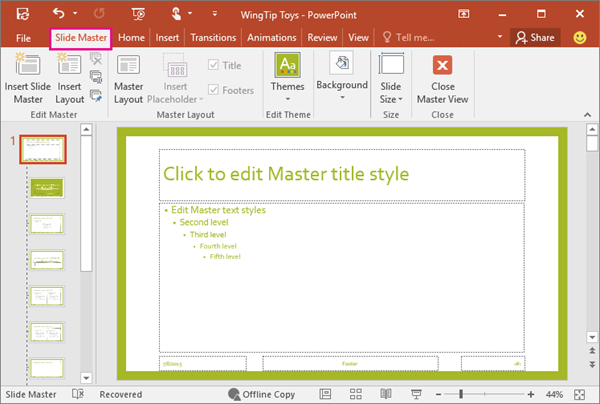
- In the slide thumbnail pane, right-click the slide master, and then select Copy.
Note
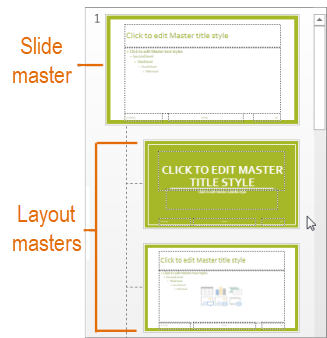
- In the thumbnail pane, the slide master is represented by the larger slide image with a numeral next to it, and the related layout masters are the smaller items subordinate to it (as illustrated above).
- Many presentations contain more than one slide master, so you may have to scroll to find the one that you want.
Paste the slide master into the new presentation
On the View tab, select Switch Windows, and then select the presentation that you want to paste the slide master to.
On the View tab, select Slide Master.
In the thumbnail pane, right-click the slide master, and then, under Paste, do one of the following;
- To take on the theme colors, fonts, and effects of the destination presentation that you are pasting to, click Use Destination Theme
 .
. - To maintain the theme colors, fonts, and effects of the presentation that you are copying from, click Keep Source Formatting
 .
.
- To take on the theme colors, fonts, and effects of the destination presentation that you are pasting to, click Use Destination Theme
When you're finished, select Close Master View.