Want to create a hanging indent or get rid of one that’s driving you crazy? You’re in the right place.
In a hanging indent, the second and subsequent lines of a paragraph are indented more than the first line.
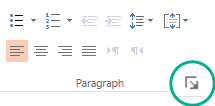
The fastest way to remove a hanging indent is to select the paragraph, click Home >
 (Paragraph dialog box launcher), and then change Hanging to (none) in the Paragraph dialog box.
Add a hanging indent
Highlight all the text (other than the first line of the paragraph) you want to indent.
Click the Home tab, and then click the Paragraph dialog box launcher.

Under Indentation, in the Before text box, click the arrow to approximately .5".
Note
One-half inch is the typical measurement for indenting a hanging paragraph.
Click the arrow next to Special, and choose Hanging.
Clear a hanging indent
Click the Home tab, and then click the Paragraph dialog box launcher.
Under Indentation, click the arrow next to Special, and choose None.
Add a hanging indent to an unnumbered list
To add a hanging indent to an unnumbered list (short lines of text separated by line breaks, rather than a paragraph that flows from line to line), you follow steps similar to adding a hanging indent.
Highlight all the short lines of text (other than the first line of the paragraph) you want to indent.
Click the Home tab, and then click the Paragraph dialog box launcher.
Under Indentation, in the Before text box, click the arrow to approximately .5".
Note
One-half inch is the typical measurement for indenting a hanging paragraph.
Click the arrow next to Special, and choose First line.