Find a word or phrase in your PowerPoint presentation and replace it with another word or phrase by following these steps.
On the Home tab, in the Editing group, choose Find and Replace.
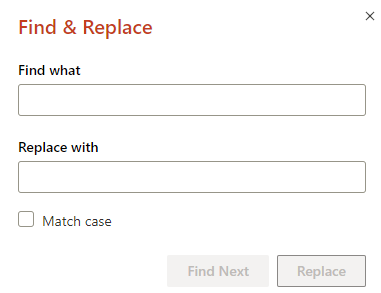
In the Find and Replace box, enter the text you want to find and replace.
In the Replace with box, enter the text you want to use as the replacement.
To search for the next occurrence of the text, choose Find Next.
Do one of the following:
- To replace the currently selected occurrence of the text, choose Replace.
- To replace all occurrences of the text, choose Replace All.
Tip
To cancel a search in progress, press ESC.
In the upper-right corner of the PowerPoint window, click the arrow next to Search in Presentation.

Select Find and Replace.
In the Find What box, enter the text you want to search for, and in the Replace With box, enter the text you want to use as the replacement.
To search for the next occurrence of the text, select Find Next.
Do one of the following:
- To replace the currently selected occurrence of the text, select Replace.
- To replace all occurrences of the text, click Replace All.
- On the right end of the Home tab, select Replace (or
 Find > Replace).
- Under Find what, enter the word or phrase you want to find.
- Under Replace with, enter the replacement word or phrase.
- Select Find Next and then select Replace.
See Also
Change the fonts

