

You can set a text character slightly above (superscript) or below (subscript) the normal baseline of type:

For example: When you add a trademark, copyright, or other symbol to your presentation, you might want the symbol to appear slightly above the rest of your text. If you're creating a footnote, you might also want to do this with a number.
Keyboard shortcuts: Apply superscript or subscript
To make text appear slightly above (superscript) or below (subscript) your regular text, you can use keyboard shortcuts.
- Select the character that you want to format.
- For superscript, press Ctrl, Shift, and the Plus sign (+) at the same time.
For subscript, press Ctrl and the Equal sign (=) at the same time.
You can also format text as superscript or subscript by selecting options in the Font dialog box, as described in the next procedure.
Apply superscript or subscript formatting to text
- Select the character that you want to format as superscript or subscript.
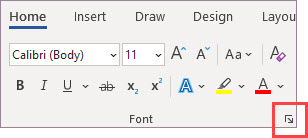
- On the Home tab, in the Font group, select the Font Dialog Box Launcher.
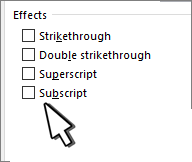
- On the Font tab, under Effects, select the Superscript or Subscript check box.
Tip
You can make text superscript or subscript without changing the font size. For superscript, enter a higher percentage in the Offset box. For subscript, enter a lower percentage in the Offset box.
Undo superscript or subscript formatting
To undo superscript or subscript formatting, select your text and press Ctrl+Spacebar.
Insert a superscript or subscript symbol
- On the slide, click where you want to add the symbol.
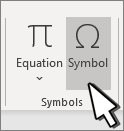
- On the Insert tab, select Symbol.
- In the Symbol box, in the Font drop-down list, select (normal text) if it isn't already selected.
- In the Symbol box, in the Subset drop-down list, select Superscripts and Subscripts.
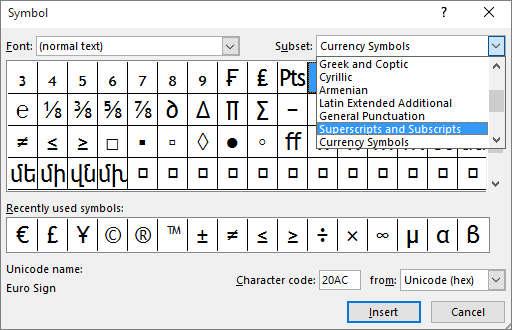
- In the Symbol box, select the symbol you want, press Insert, and then select Close.


