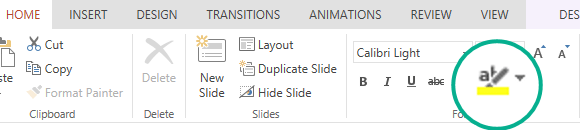
Text highlighting in PowerPoint 2019 and newer versions lets you mark text in yellow or another highlighter color. (This feature is available on both Windows and macOS, and it's available in your browser in PowerPoint for the web.)

|
If you don't see the Text Highlight Color
 button on the Home tab of the Ribbon, read Requirements below for more details.
 |
|---|
Highlight one piece of text
Select the text that you want to highlight.
On the Home tab, select the arrow next to Text Highlight Color
.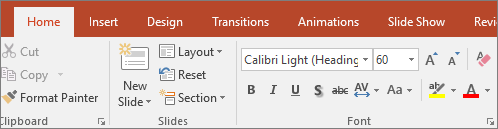
Choose a color. The text you selected will be highlighted in the color you chose.
Highlight multiple pieces of non-contiguous text
With no text selected on the slide, on the Home tab, select the arrow next to Text Highlight Color
.
Choose a color, and then move the mouse pointer over the text area of your slide.
The mouse pointer changes to a highlighter. .
.Select each portion of text that you want to highlight.
When you're done highlighting, press Esc on the keyboard to turn off the highlighter.
Remove highlighting from text
- Select the highlighted text.
- On the Home tab, select the arrow next to Text Highlight Color
and click No Color.
Other ways to highlight
Here are two other ways to emphasize something on screen while you're presenting:
- Turn your mouse into a laser pointer to draw attention to something on a slide
- Magnify part of the slide on the screen when you're using Presenter view
Requirements for Text Highlighting
|
|
Applies to: |
|---|---|
| PowerPoint for Microsoft 365 Current Channel: Version 1606 or later Semi-Annual Enterprise Channel: Version 1701 or later PowerPoint 2024 PowerPoint 2021 PowerPoint 2019 Find your Office version |
|
| Windows Find your Windows version |